

Devices and channels
Devices and watchlist
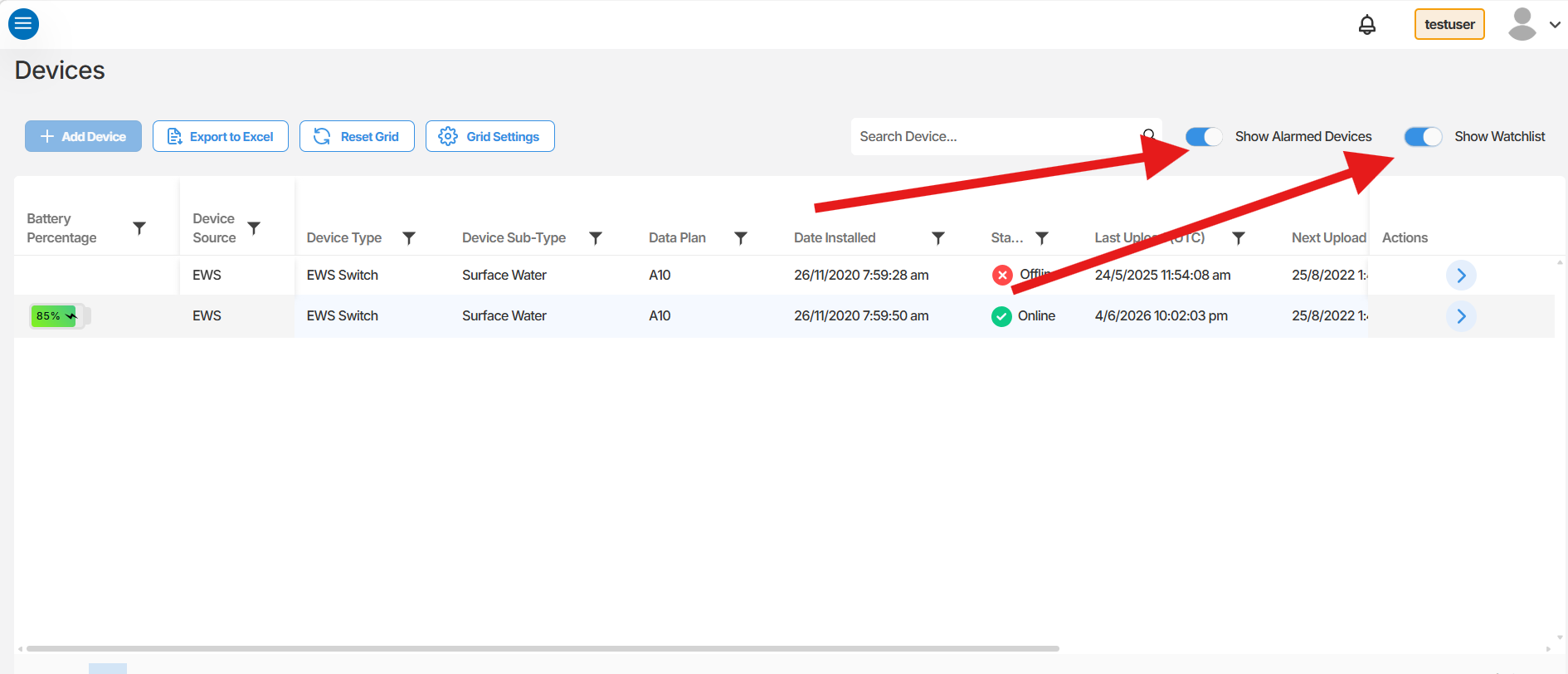
Device-list search, column filters, grid settings and watchlist controls.
This article introduces the Devices list view, covering how to navigate to it, locate specific devices, filter the list, and use the watchlist feature.
Navigating to Devices
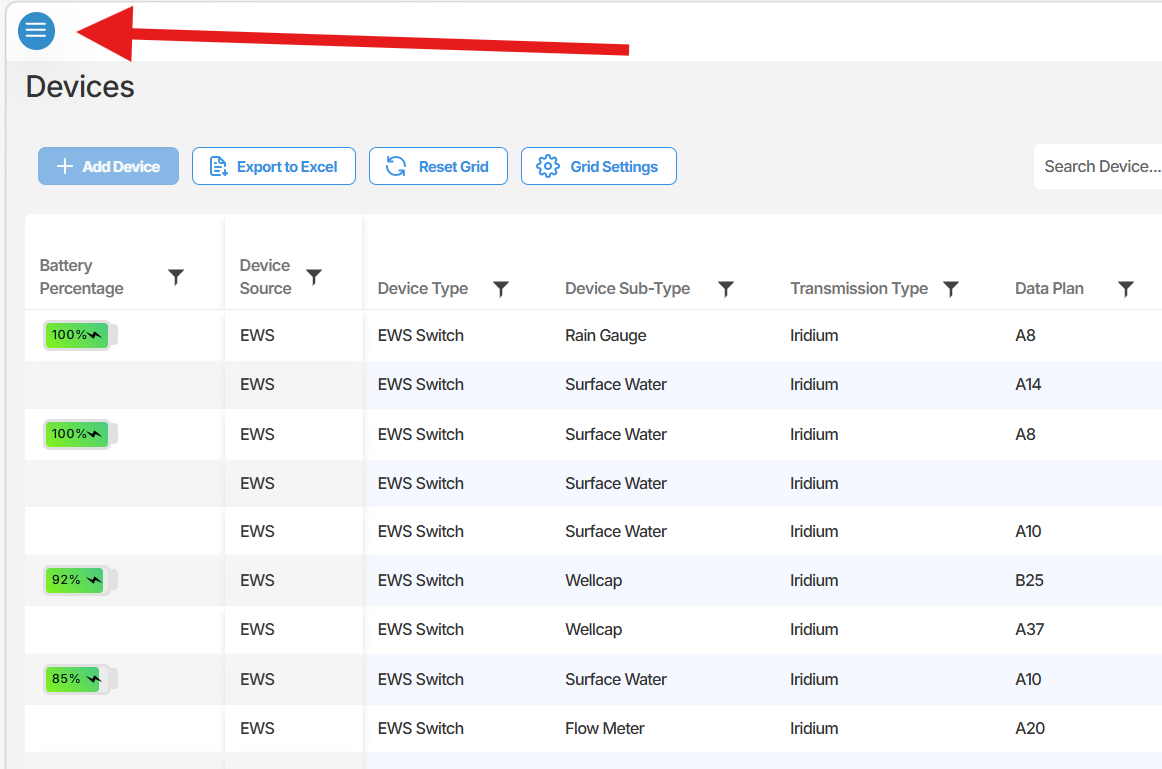
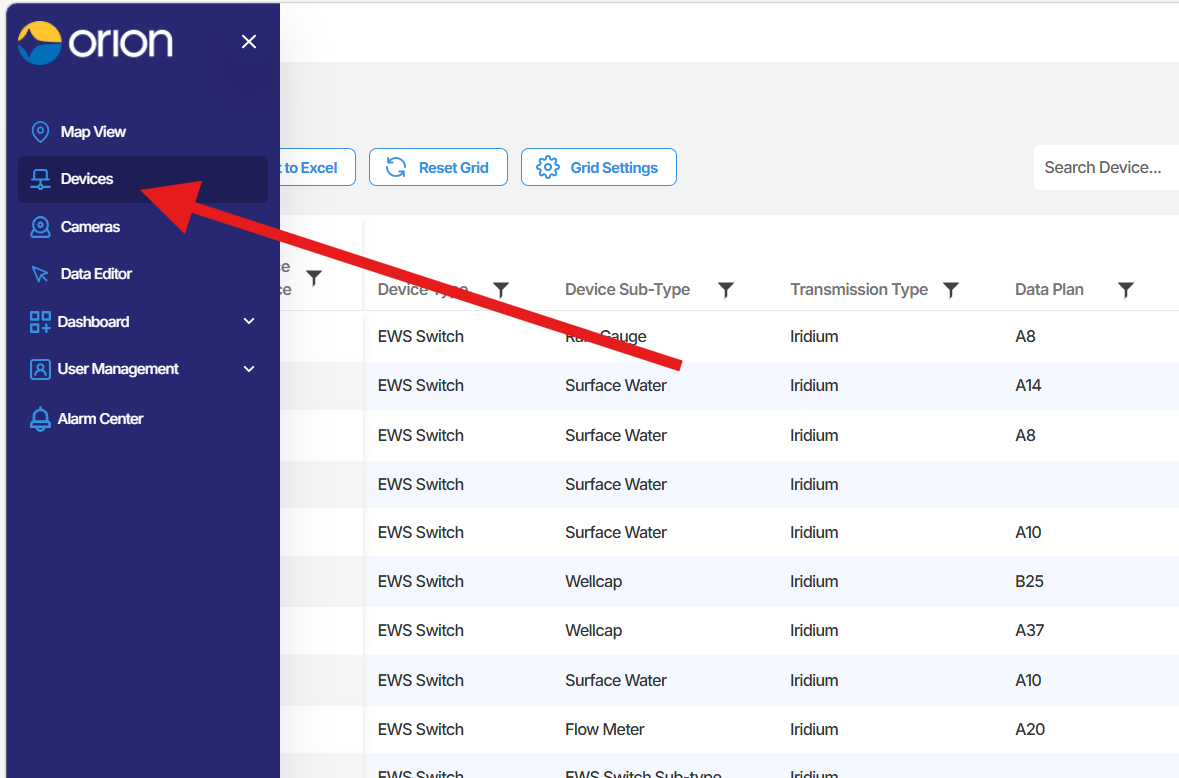
Section titled “Navigating to Devices”To access the Devices section:
- Select the three-line menu icon in the top left of the screen.
- Select Devices from the menu, located just below the Map View button.
This will open the Devices list view, displaying all devices associated with your account or profile.
Finding a device
Section titled “Finding a device”There are three ways to locate a specific device in the list.
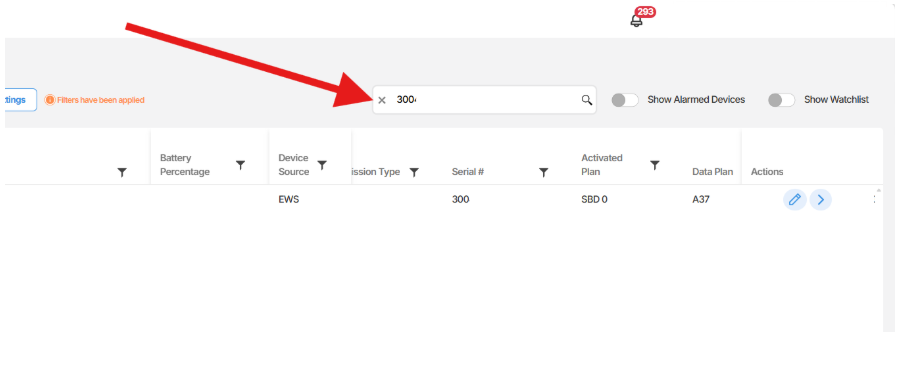
Search by IMEI or serial number
Type the device IMEI number or serial number directly into the search field at the top of the list. Orion Data will filter the results to match your entry.
Browse using pagination
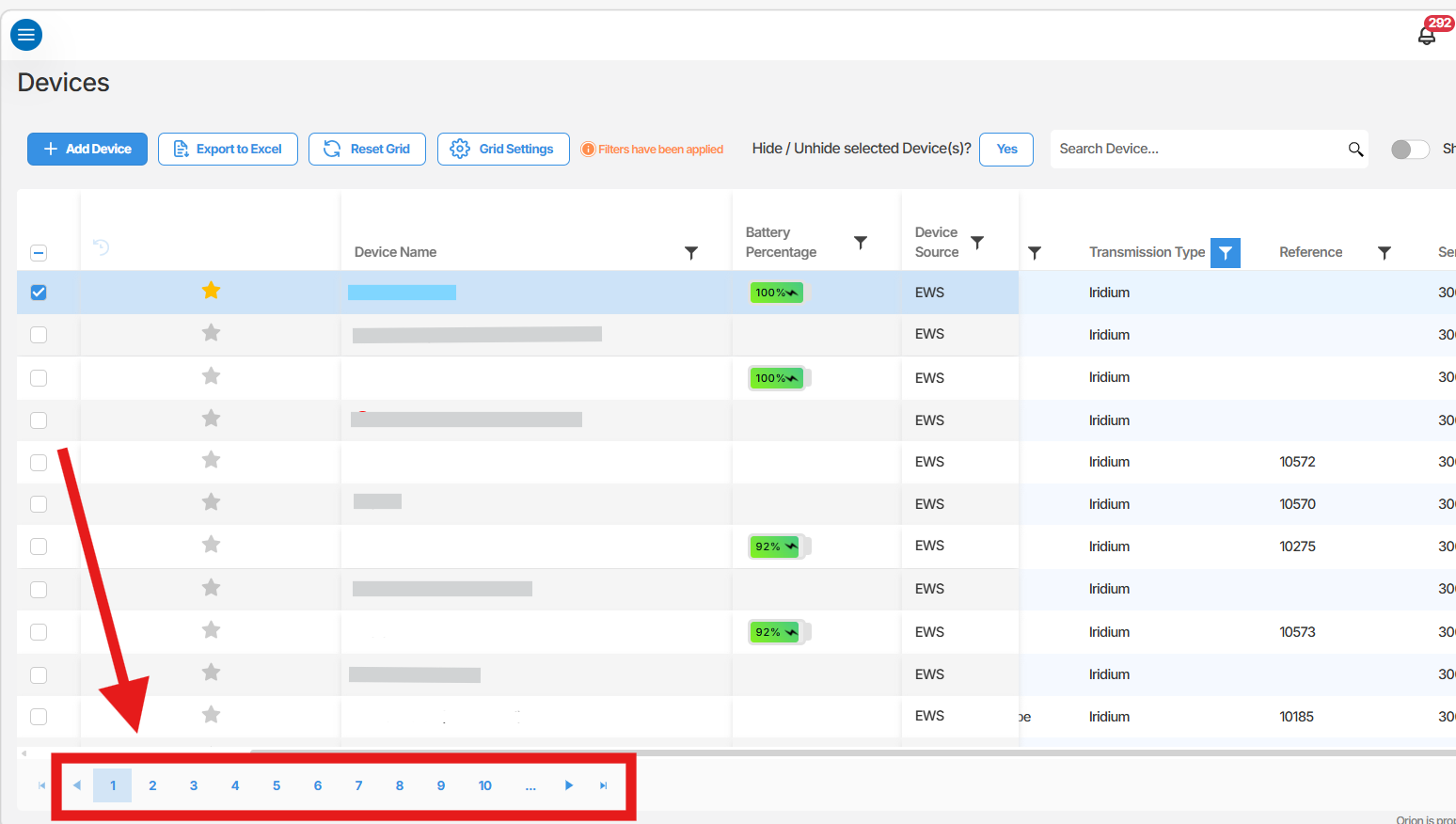
Use the page number controls and the Next button in the lower left of the list to move through multiple pages of devices.
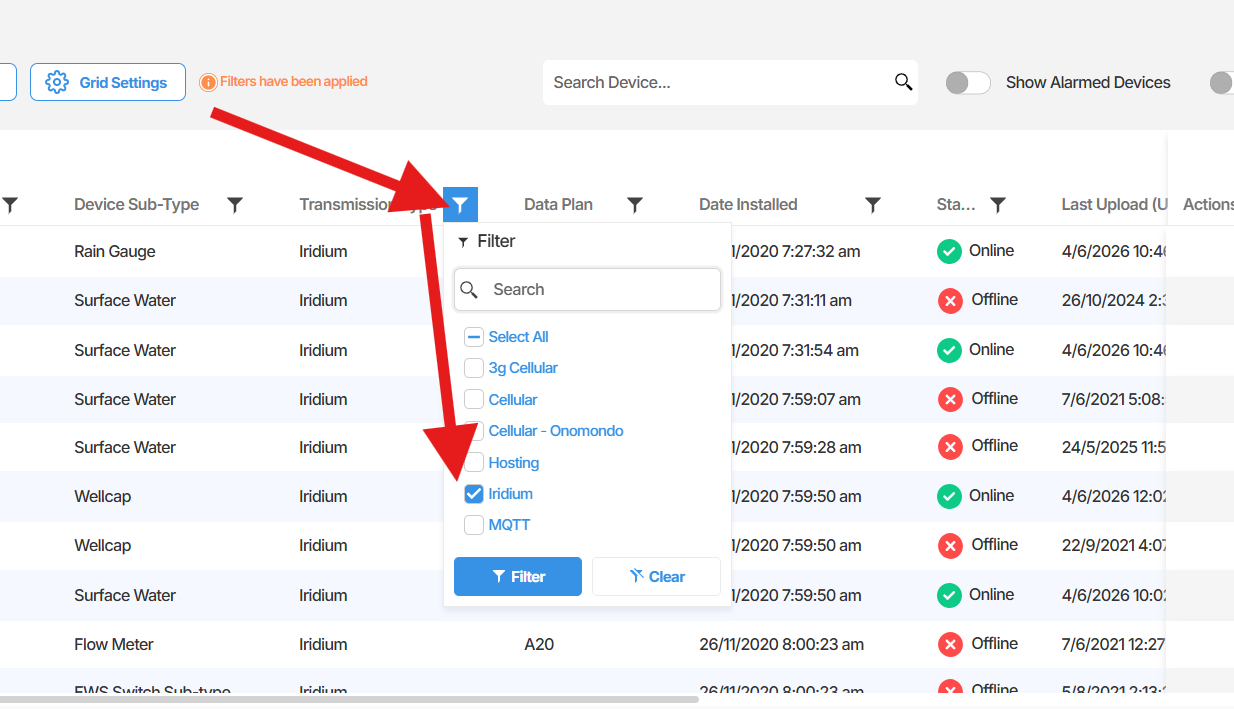
Filter by column
Each column in the device grid supports filtering. To apply a filter:
- Select the filter icon at the top of the column you want to filter by.
- Check the values you want to include in the results.
- The list will update to display only devices matching your selected criteria.
For example, to view only devices using Iridium transmission, select the filter icon on the Transmission Type column and check Iridium.
Customising the grid
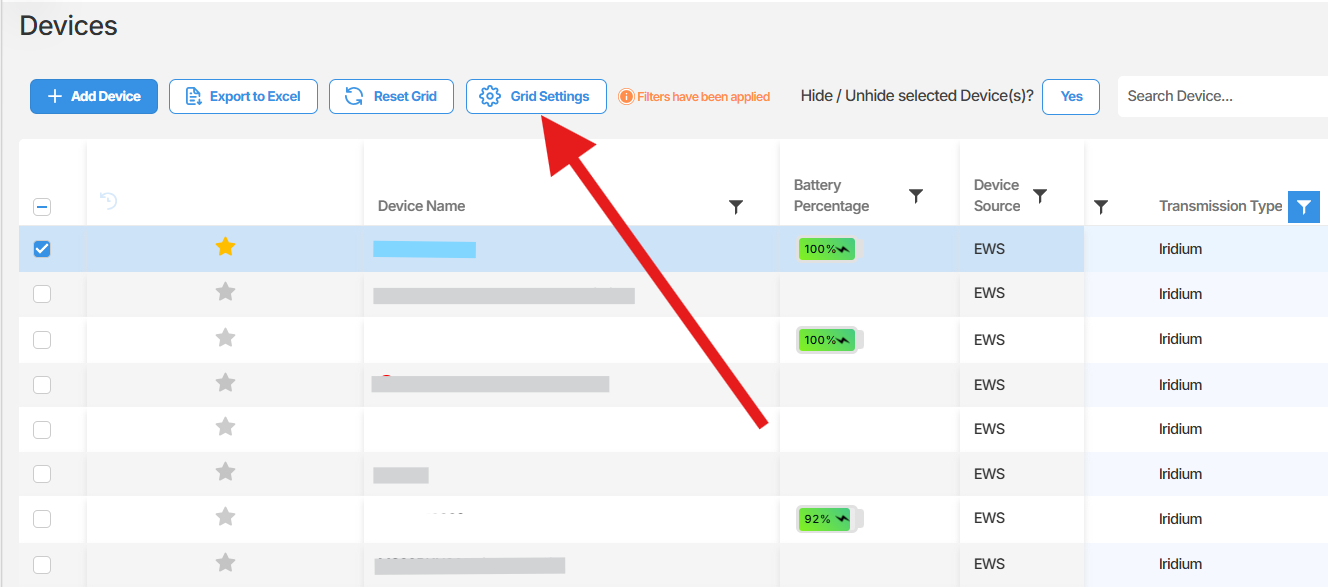
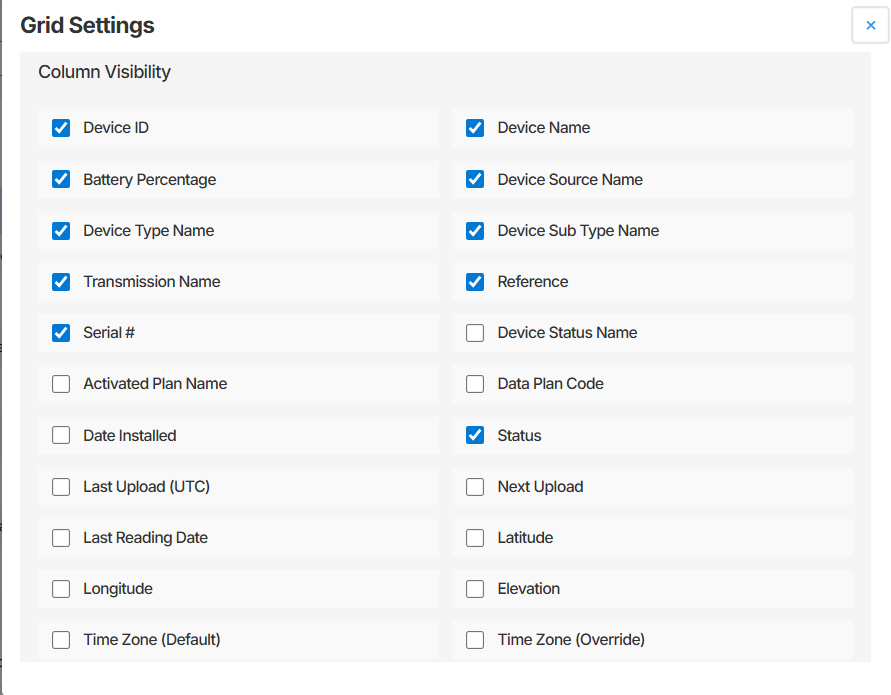
Section titled “Customising the grid”The columns displayed in the device grid can be configured using the Grid Settings option. This allows you to show or hide columns based on the information most relevant to your workflow.
Using the watchlist
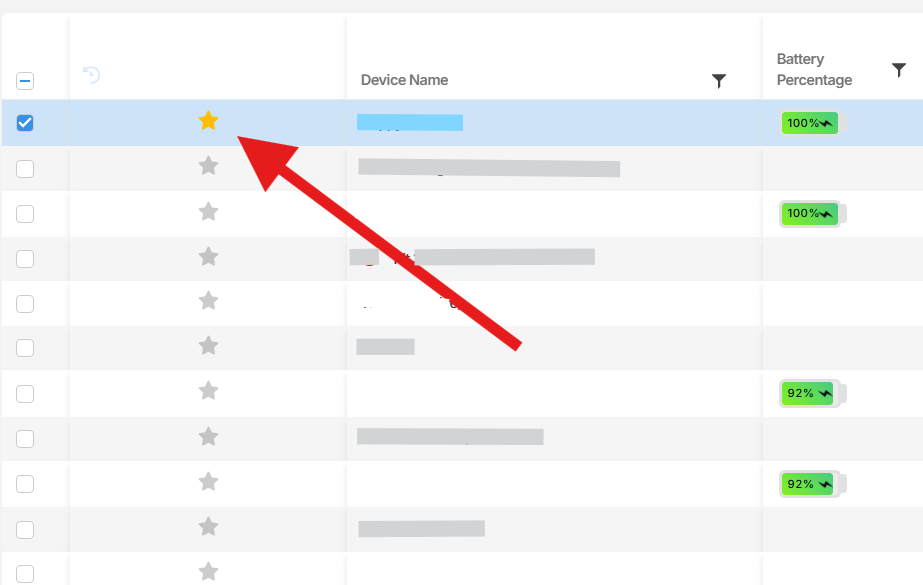
Section titled “Using the watchlist”You can add any device to your watchlist for quick access. To add a device to the watchlist, select the star icon in the first column of that device’s row.
To view only devices in your watchlist, or only devices that are currently alarmed, use the toggle buttons in the top left of the Devices list view.
Summary
Section titled “Summary”This article covered how to navigate to the Devices section in Orion Data and how to work with the Devices list view. You can locate devices by searching with an IMEI or serial number, browsing by page, or applying column filters. The watchlist and alarm toggles allow you to quickly focus on priority devices.
Next Steps
Section titled “Next Steps”- Open a device record to explore its sensors, alarms, and configuration options
- Apply filters to segment your device list by transmission type or other criteria
- Add your most critical devices to the watchlist for faster access
- Explore the Map View for a geographic overview of your devices
Related articles
Section titled “Related articles”- Map View overview
- Understanding device records and sensors
- Setting up device alarms in Orion Data
- Managing users in Orion Data