

Alarms
Alarm history
Channel alarm-history date ranges, record columns and export controls.
This article explains how to navigate to the Alarm Centre, filter alarm history by date, and export alarm records.
Navigating to the Alarm Centre
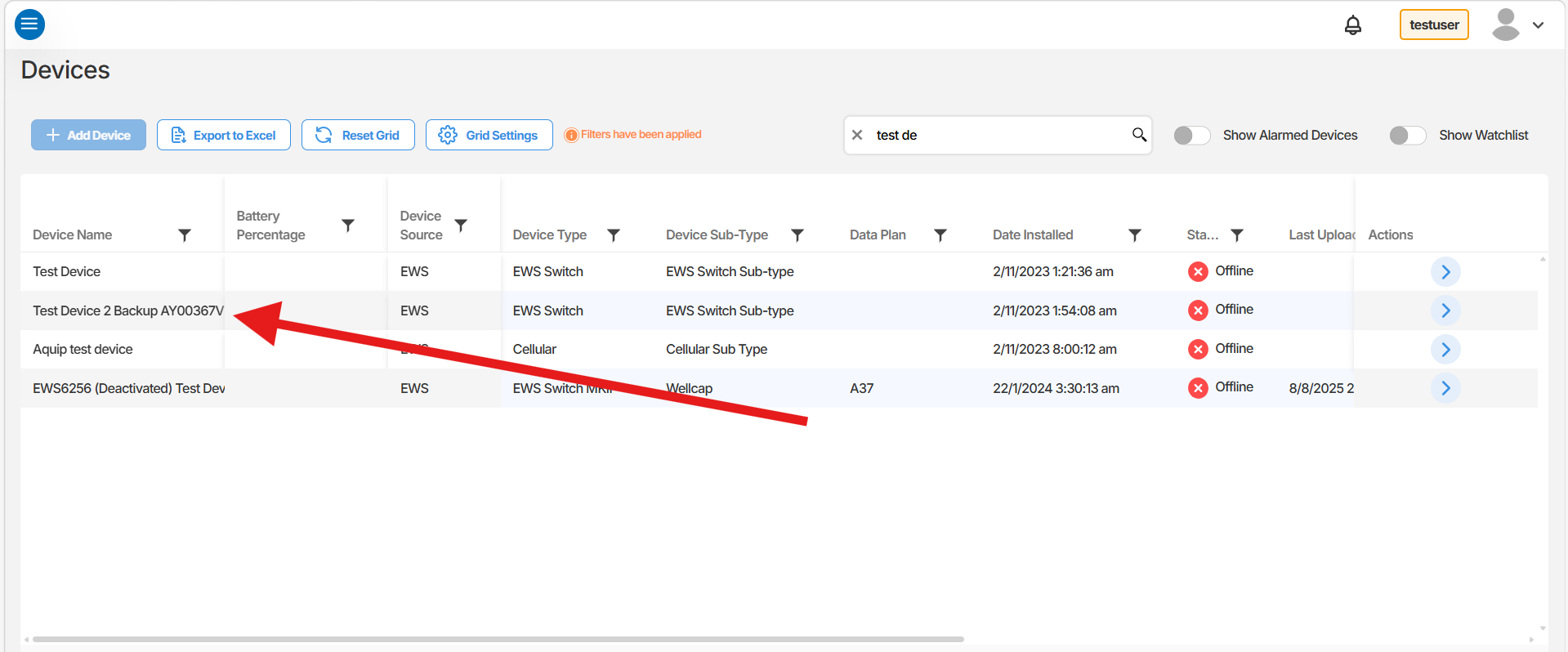
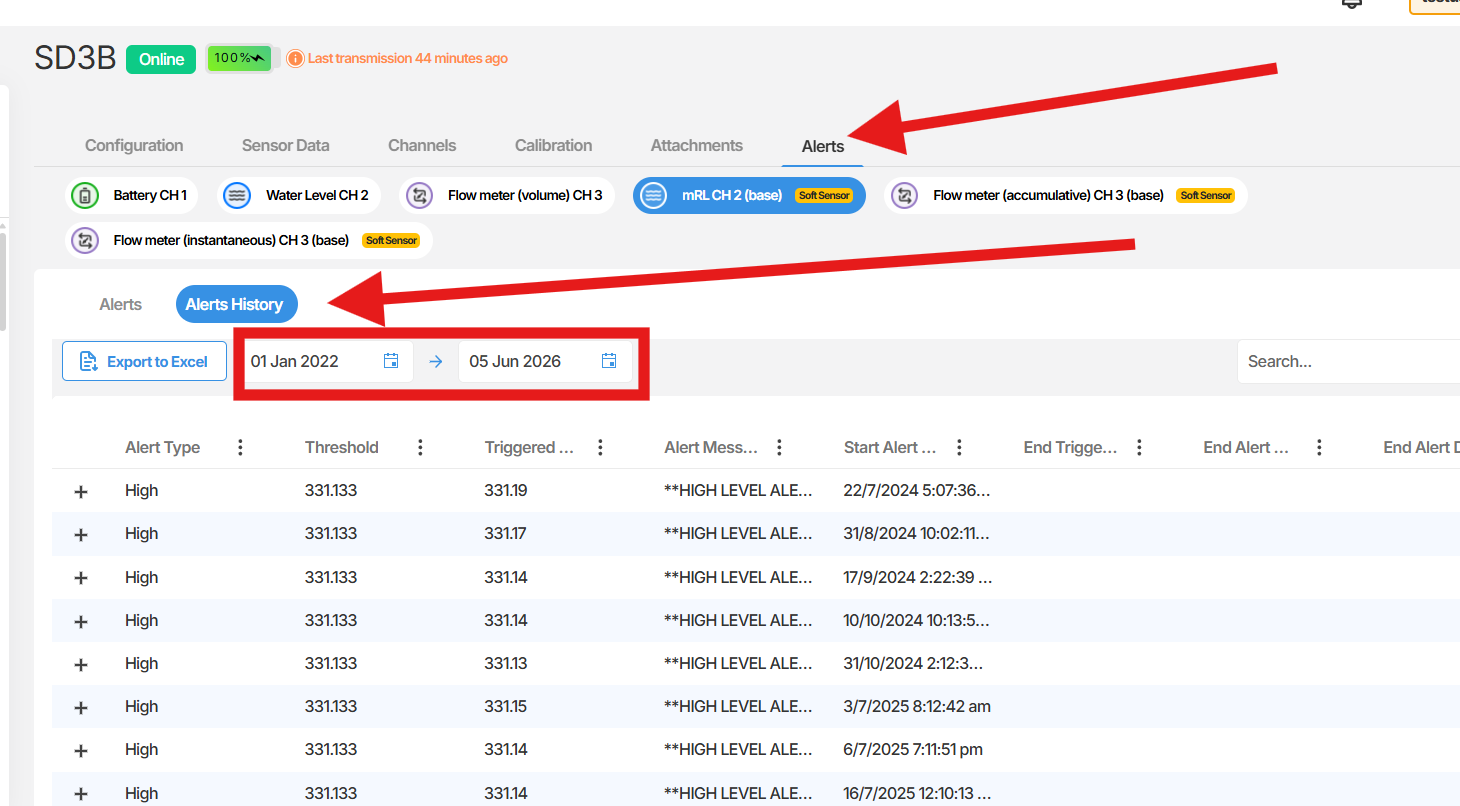
Section titled “Navigating to the Alarm Centre”To access alarm history for a specific channel, follow these steps:
- From the main menu, navigate to Device Management.
- Select Alerts.
- Select the channel that has an alarm configured.
- Click the Alert History button.
Viewing alarm history
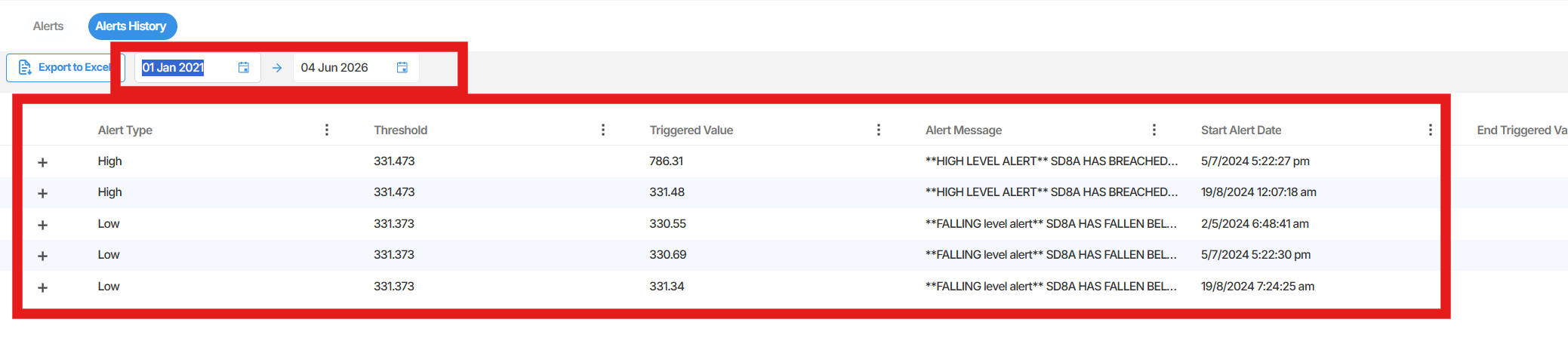
Section titled “Viewing alarm history”By default, the Alarm Centre displays alarm history for the past week. You can adjust this to a custom date range to review older or more specific records.
To change the date range:
- Locate the date range selector at the top of the alarm history view.
- Select your desired start and end dates.
- The alarm history will update to reflect the selected period.
 All users can view alarm history.
Exporting alarm history
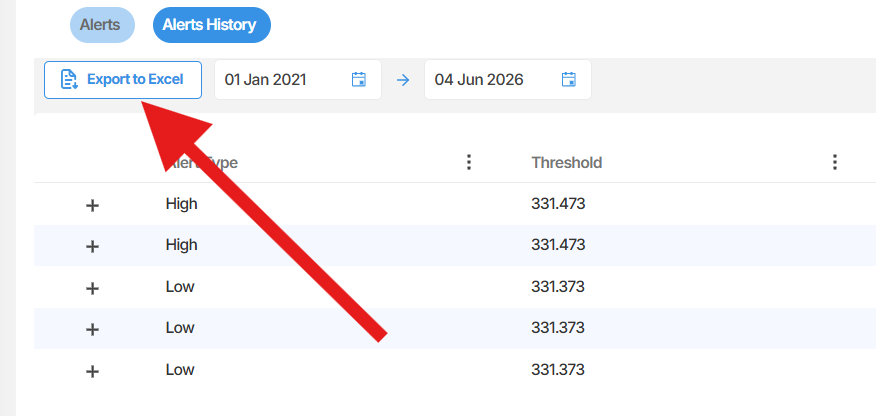
Section titled “Exporting alarm history”You can export the displayed alarm records to an Excel file at any time. The Export to Excel button is available regardless of the date range selected.
To export:
- Set your desired date range if required.
- Click Export to Excel.
The file will download to your device and will contain the alarm records currently displayed on screen.
Alarm history columns
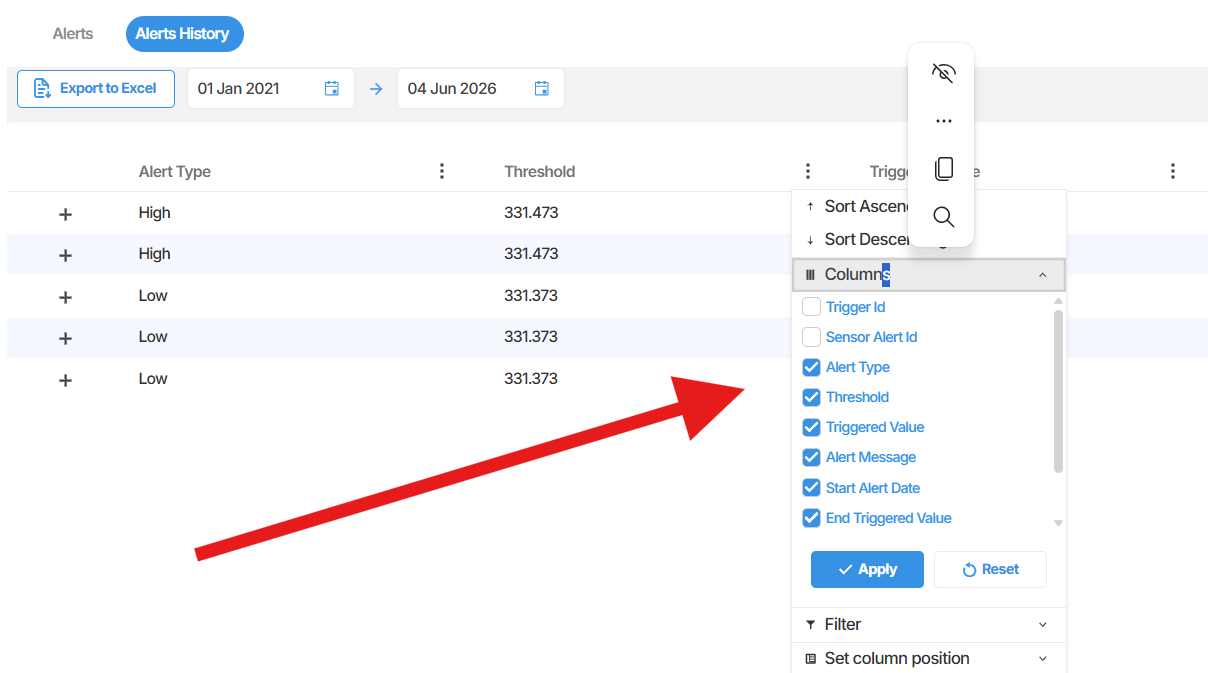
Section titled “Alarm history columns”The alarm history table can include a number of columns. The columns visible to you are configured by your administrator or EWS Australia. The following columns are available:
- Trigger ID
- Sensor Alert ID
- Alert Type
- Threshold
- Triggered Value
- Alert Message
- Start Alert Date
- End Triggered Value
- End Alert Message
- End Alert Date
 Summary
The Alarm Centre provides a centralised log of alarm events for your monitored channels. You can navigate to it via Device Management > Alerts, select a configured channel, and view its alert history. Date ranges can be adjusted to review specific periods, and records can be exported to Excel at any time.
Next Steps
Section titled “Next Steps”- Review alarm history for a specific channel to check for recurring issues
- Export alarm records for reporting or record-keeping purposes
- Contact your administrator or EWS Australia if you need to adjust which columns are visible in your alarm history table
- Speak to your administrator if you need an alarm configured on a channel
Related articles
Section titled “Related articles”- Setting up sensor alarms in Orion Data
- Managing alarm recipients in Orion Data
- Understanding alarm types and thresholds in Orion Data