

Devices and channels
Device configuration fields
Device identification, location, dates, time-zone, data-rounding and assignment fields.
It contains all core settings that define how a device is identified, located, and managed on the platform. Standard users can view these fields, but editing is restricted to administrators and authorised users. Select Update Device to save any changes made.
Basic Information
Section titled “Basic Information”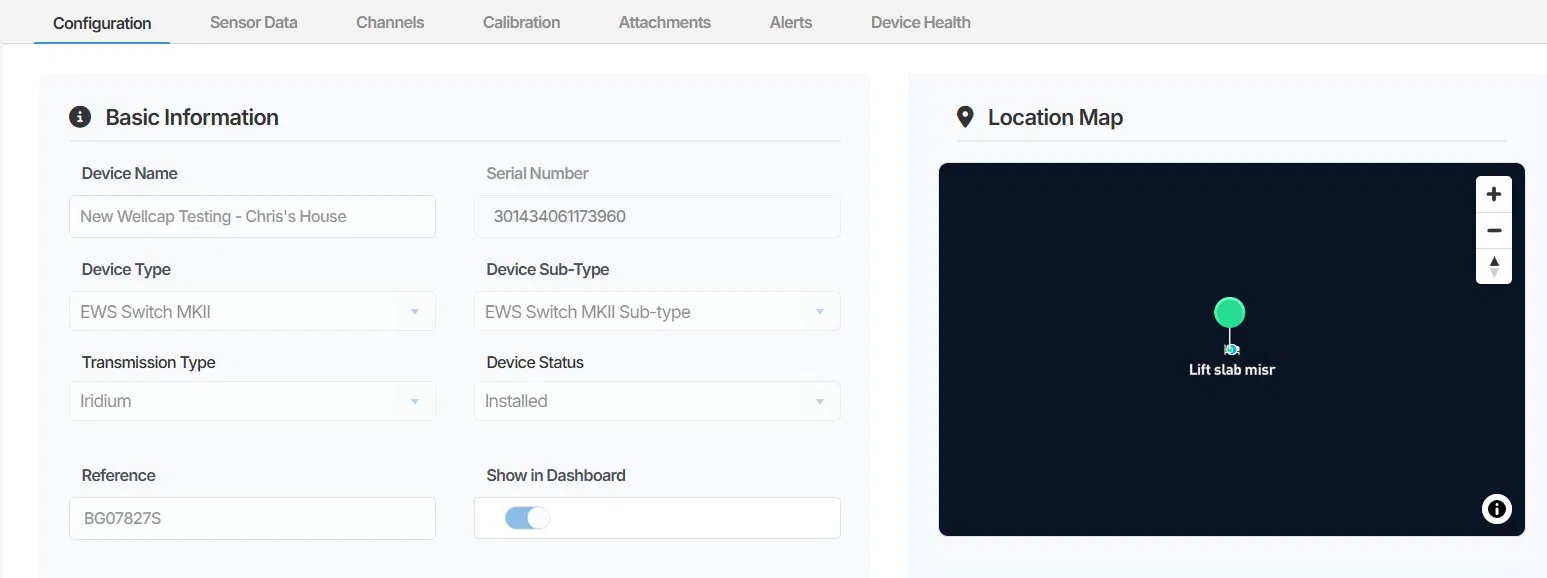
Device Name The display name for the device as it appears throughout Orion Data, including the Map View and Dashboards. This should be descriptive enough to identify the device and its location at a glance.
Serial Number The hardware serial number of the physical device unit. This is assigned by the manufacturer and is read-only.
Device Type The hardware model or product type of the device (for example, EWS Switch or EWS Switch MKII). This determines how the device communicates with the platform.
Device Sub-Type A secondary classification for the device, used to further categorise the type of monitoring being performed (for example, Surface Water or EWS Switch MKII Sub-type).
Transmission Type The communications method the device uses to transmit data to Orion Data. Common transmission types include Iridium satellite and MQTT. This is set based on the hardware configuration of the physical device.
Device Status The current operational status of the device. Common statuses include:
- Installed - the device is active and transmitting
- Deactivated - the device has been taken out of service
Reference An optional field for recording an internal reference identifier. This is typically used to store the device serial number as provided by the client or project, which may differ from the hardware serial number.
Show in Dashboard A toggle that controls whether the device appears in Dashboard views. Disable this for devices that should be excluded from general visibility.
Location Map and Coordinate Conversion
Section titled “Location Map and Coordinate Conversion”The Location Map panel displays the device’s current position on a map based on the coordinates entered. Devices do not have built-in GPS functionality, so coordinates must be entered manually.
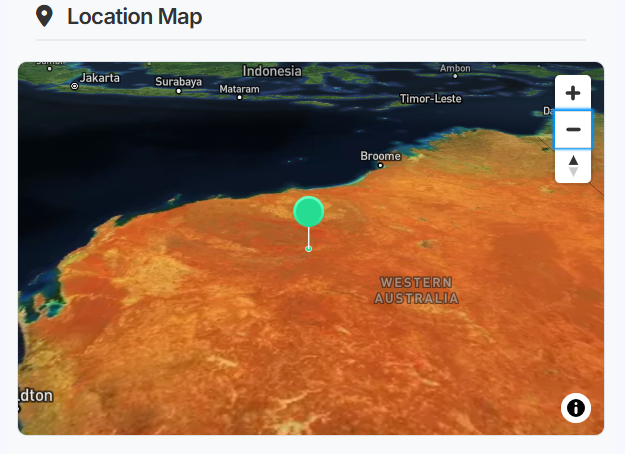
Coordinates can be entered as decimal latitude and longitude, or converted from UTM format using the Coordinate Conversion tool. See Setting a device’s installation location for full instructions on entering and converting coordinates.
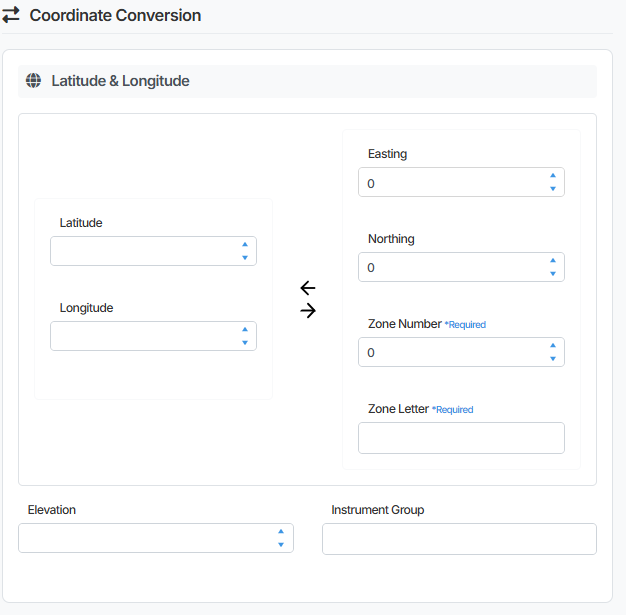
Elevation An optional field for recording the elevation of the device installation site above sea level.
Important Dates
Section titled “Important Dates”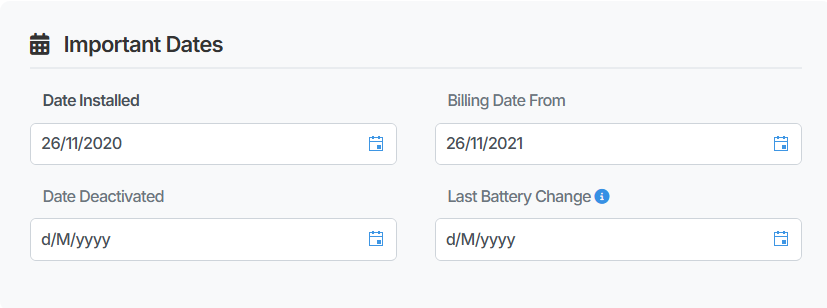
Date Installed The date the device was physically installed in the field. This is used for record-keeping and reporting purposes.
Billing Date From The date from which billing for the device is calculated.
Date Deactivated The date the device was deactivated, if applicable. This field is left blank for active devices.
Timezone Configuration
Section titled “Timezone Configuration”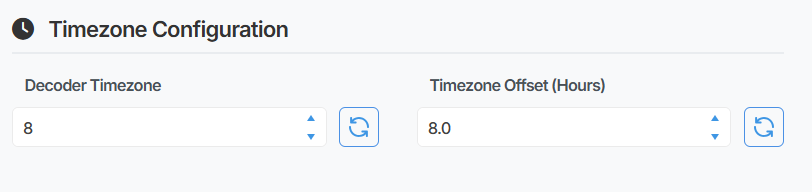
Timezone Offset (Hours) Sets the timezone offset applied to data timestamps for this device. Enter the UTC offset in hours for the timezone where the device is installed. For example, a device in Western Australia (UTC+8) would have an offset of 8.0.
Data Rounding Configuration
Section titled “Data Rounding Configuration”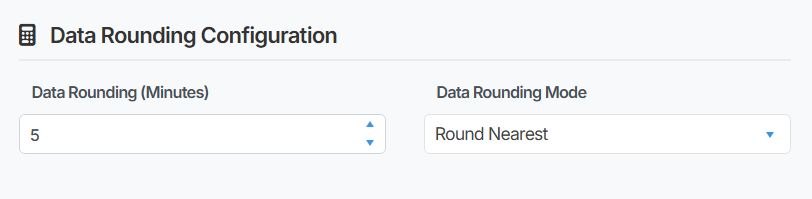
Data Rounding (Minutes) Controls the interval to which incoming data timestamps are rounded on transmission. For example, a value of 60 rounds all readings to the nearest hour, and a value of 10 rounds an 8-minute reading to the 10-minute mark. This setting should reflect the expected transmission interval of the device.
Data Rounding Mode Determines how timestamps are rounded when they fall between intervals. The default mode is Round Nearest.
Access and Assignment
Section titled “Access and Assignment”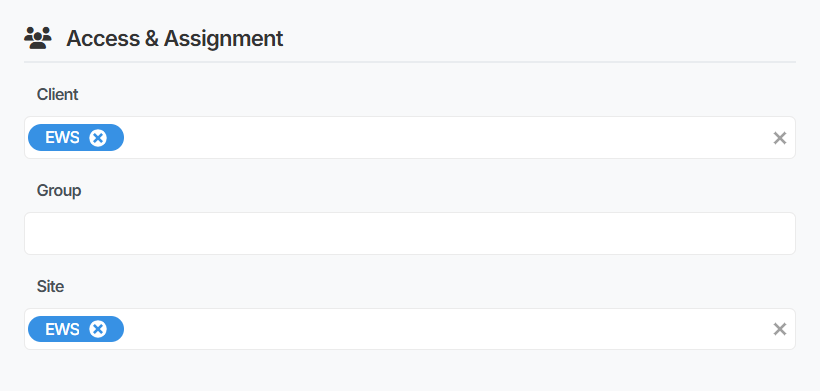
These fields control which clients, groups, and sites the device is associated with in Orion Data. Assignment determines which users can access the device based on their permissions.
Client The client organisation the device is assigned to. A device can be assigned to one or more clients.
Group An optional grouping used to organise devices within a client. Groups can be used to segment devices by project, region, or other criteria.
Site The site or sites the device is associated with. A device can be assigned to multiple sites.
Summary
Section titled “Summary”The Configuration tab provides a complete record of a device’s identity, location, operational settings, and access assignment in Orion Data. Standard users can view all fields, while editing is restricted to administrators and authorised users. Changes are saved by selecting Update Device.
Next Steps
Section titled “Next Steps”- Set or update the device’s installation location using the Coordinate Conversion tool
- Review device access by checking the Client, Group, and Site assignments
- Upload supporting documents and installation photographs via the Attachments tab