

Orientation and account
Profile preferences and security
Profile preferences, map appearance, password controls, MFA and recovery-code settings.
This article walks through each section of the profile settings page and explains what each option does.
Accessing your profile settings
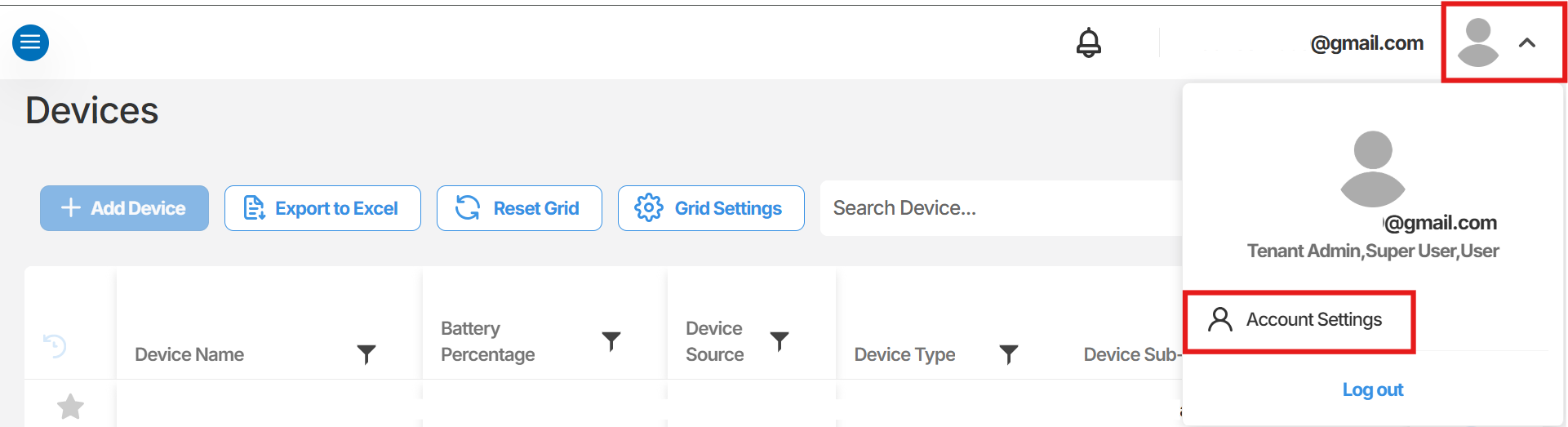
Section titled “Accessing your profile settings”- Log in to Orion Data.
- Select your account name or avatar in the top-right corner of the screen.
- Select Profile or Account Settings from the dropdown menu.
Profile information
Section titled “Profile information”This section contains your core account details.
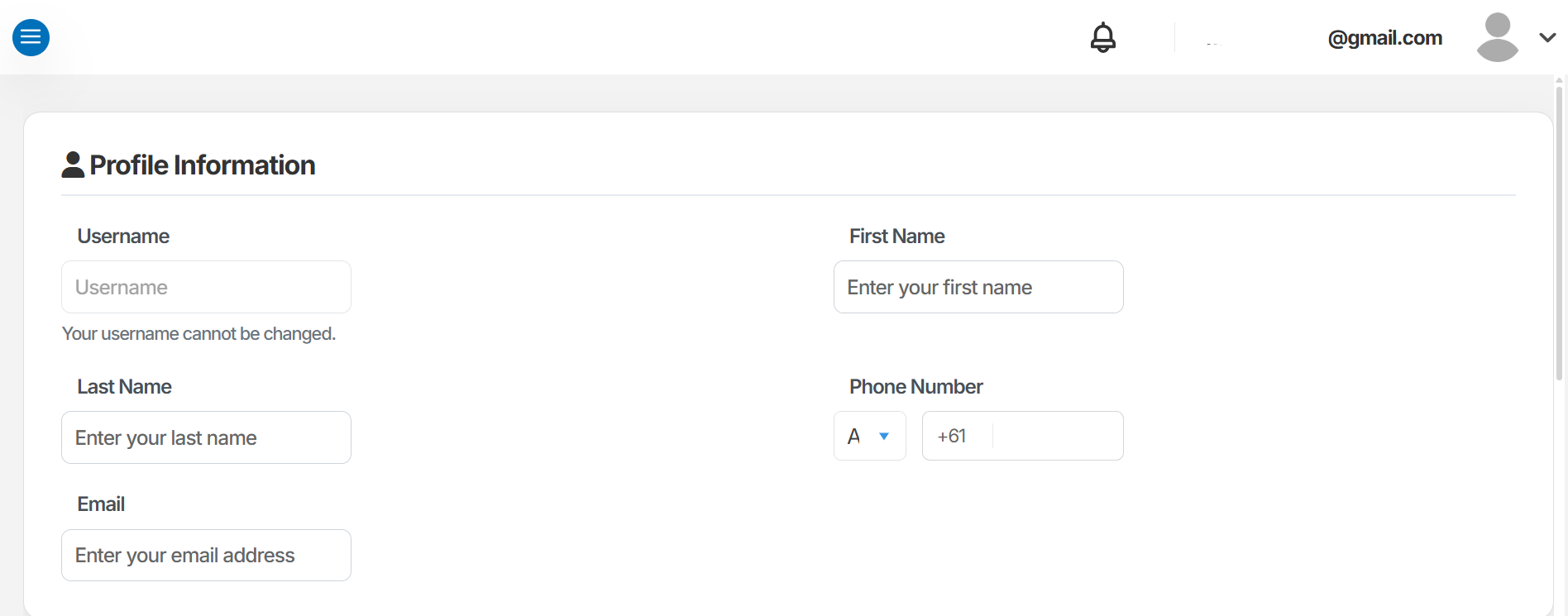
- Username - Your username is assigned at account creation and cannot be changed. This field is read-only.
- Email - The email address used for platform notifications. Keep this address valid to ensure you receive alarm notifications and system messages.
- Phone - Your contact phone number. Include the international dialling code when entering or updating this field.
To update your email or phone number, edit the relevant field and select Save Account Settings at the bottom of the page.
Preferences
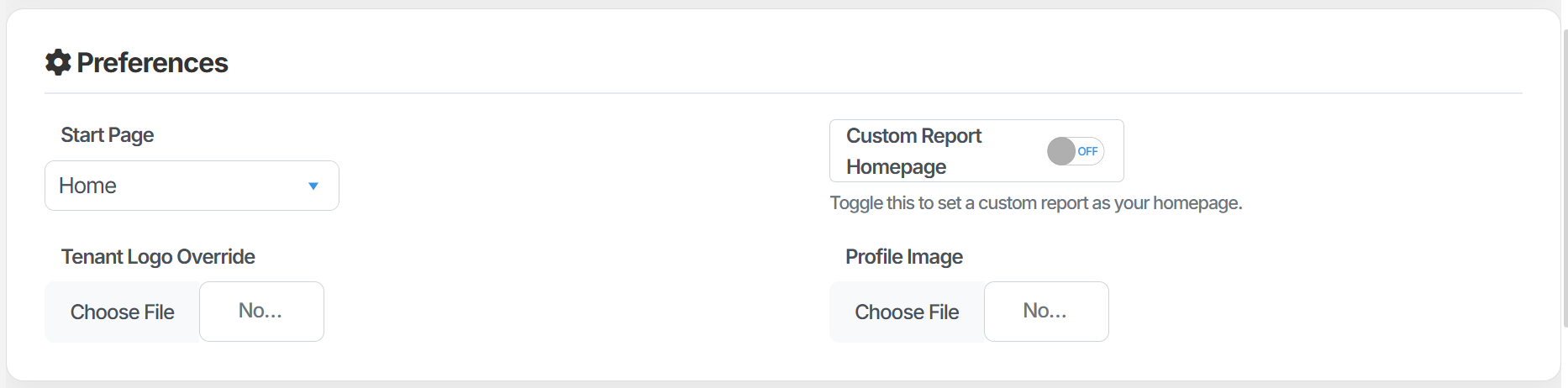
Section titled “Preferences”The preferences section controls how Orion Data behaves when you log in and how the map is displayed.
- Mapbox Style - Sets the default visual style for the map displayed in Map View. Select your preferred style from the available options.
- Start Page - Determines which page loads immediately after you log in. The available options are Devices, Dashboard, Reports, and Maps.
- Custom Report Homepage - Overrides the Start Page setting with a specific report view. If set, you will be taken directly to that report on login instead of the page selected in Start Page.
- Profile Image - Upload a personal avatar displayed within the platform. Images must be square and in PNG or JPG format.
- Tenant Logo - Upload a custom company logo to be displayed within the platform. Follow the same image format requirements as for the profile image.
Security settings
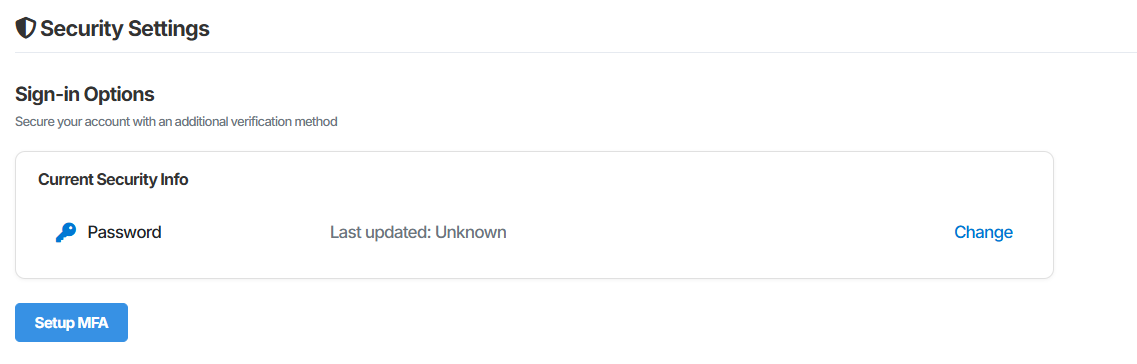
Section titled “Security settings”This section allows you to manage your password and configure multi-factor authentication (MFA).
Password
Section titled “Password”The password panel displays the current status of your password and the date it was last updated. To change your password, select the option to update it and follow the on-screen prompts.
Microsoft Authenticator (MFA)
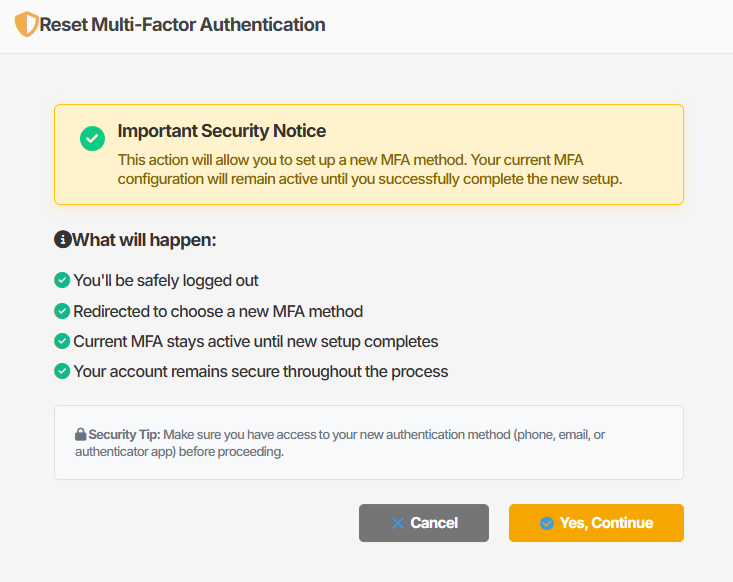
Section titled “Microsoft Authenticator (MFA)”Orion Data supports time-based one-time password (TOTP) multi-factor authentication via Microsoft Authenticator. Enabling MFA adds a second layer of security to your account and is recommended for all administrator accounts.
To set up Microsoft Authenticator:
- Select the option to set up or enable Microsoft Authenticator in the Security Settings section.
- Open the Microsoft Authenticator app on your mobile device.
- Scan the QR code displayed on screen.
- Enter the verification code generated by the app to confirm setup.
Recovery codes
Section titled “Recovery codes”Recovery codes allow you to access your account if your authenticator app is unavailable. Generate your recovery codes from the Security Settings section and store them in a secure location, such as a password manager or a printed document kept offline.
Saving your changes
Section titled “Saving your changes”Once you have made any updates to your profile information or preferences, select Save Account Settings to apply them. Security settings such as password changes and MFA setup are saved through their own dedicated flows and do not require this button.
Summary
Section titled “Summary”This article covered the key sections of the Orion Data profile and account settings page, including how to update your personal information, configure platform preferences, and manage security options. MFA via Microsoft Authenticator is available for added account security and is recommended for administrator accounts. Always select Save Account Settings after making changes to profile information or preferences.
Next steps
Section titled “Next steps”- Enable Microsoft Authenticator on your account if you have not already done so
- Review your Start Page preference to ensure the platform opens on the section most relevant to your role
- Store your recovery codes in a secure location after generating them
Related articles
Section titled “Related articles”- Getting started with Orion Data
- Managing users and permissions in Orion Data
- Understanding notification settings in Orion Data