

Orientation and account
Account settings
Profile fields, start-page preferences and sign-in options available in Account Settings.
This article explains each section of the page and what you can update.
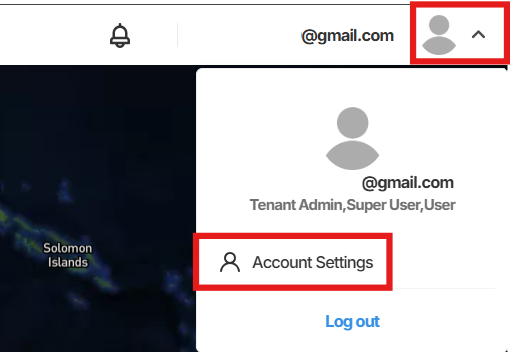
To access your account settings, select your profile icon in the top right corner of Orion Data and choose Account Settings from the dropdown menu.
Profile Information
Section titled “Profile Information”The Profile Information section contains your personal details as they appear in Orion Data.
The following fields are available:
- Username - Your login username. This is set when your account is created and cannot be changed.
- First Name - Your given name as displayed in the platform.
- Last Name - Your family name as displayed in the platform.
- Phone Number - Your contact phone number, including country code.
- Email - The email address associated with your account.
Update any editable fields and select Save Account Settings at the bottom of the page to apply your changes.
Preferences
Section titled “Preferences”The Preferences section controls how Orion Data behaves and appears for your account.
- Start Page - Sets the page that loads when you first sign in to Orion Data. Available options are Home (Map View), Devices, and Cameras.
- Custom Report Homepage - Toggle this on to set a custom report as your homepage instead of the page selected in Start Page.
- Profile Image - Upload an image to represent your account within the platform.
- Tenant Logo Override - Upload a custom logo to replace the default tenant logo displayed in Orion Data.
Security Settings
Section titled “Security Settings”The Security Settings section allows you to manage how you sign in and protect your account.
Sign-in options
Section titled “Sign-in options”The Sign-in Options panel displays your current security configuration and provides options to update it.
- Password - Displays when your password was last updated. Select Change to update your password.
- Setup MFA - Select Setup MFA to configure multi-factor authentication on your account. Enabling MFA adds an additional verification step when signing in, improving account security.
Saving your changes
Once you have made updates to any section, select Save Account Settings in the bottom right corner of the page to apply your changes.
Summary
Section titled “Summary”Account settings gives you control over your personal profile details, platform display preferences, and account security. You can update your name, email, and phone number, configure your start page and map style, and manage your password and multi-factor authentication from this single page.
Next Steps
Section titled “Next Steps”- Set your preferred Start Page so Orion Data opens on the section most relevant to your work.
- Select Setup MFA to add an additional layer of security to your account.
- Review your Email address to ensure notifications and alerts are sent to the correct address.
Related articles
Section titled “Related articles”- Navigating Orion Data
- Map View
- Managing users in Orion Data