

Devices and channels
Device list columns and export
Device-list column visibility, search and spreadsheet export controls.
This article explains how to navigate to the device list, customise what information is displayed, search for specific devices, and export your device data.
Navigating to the device list
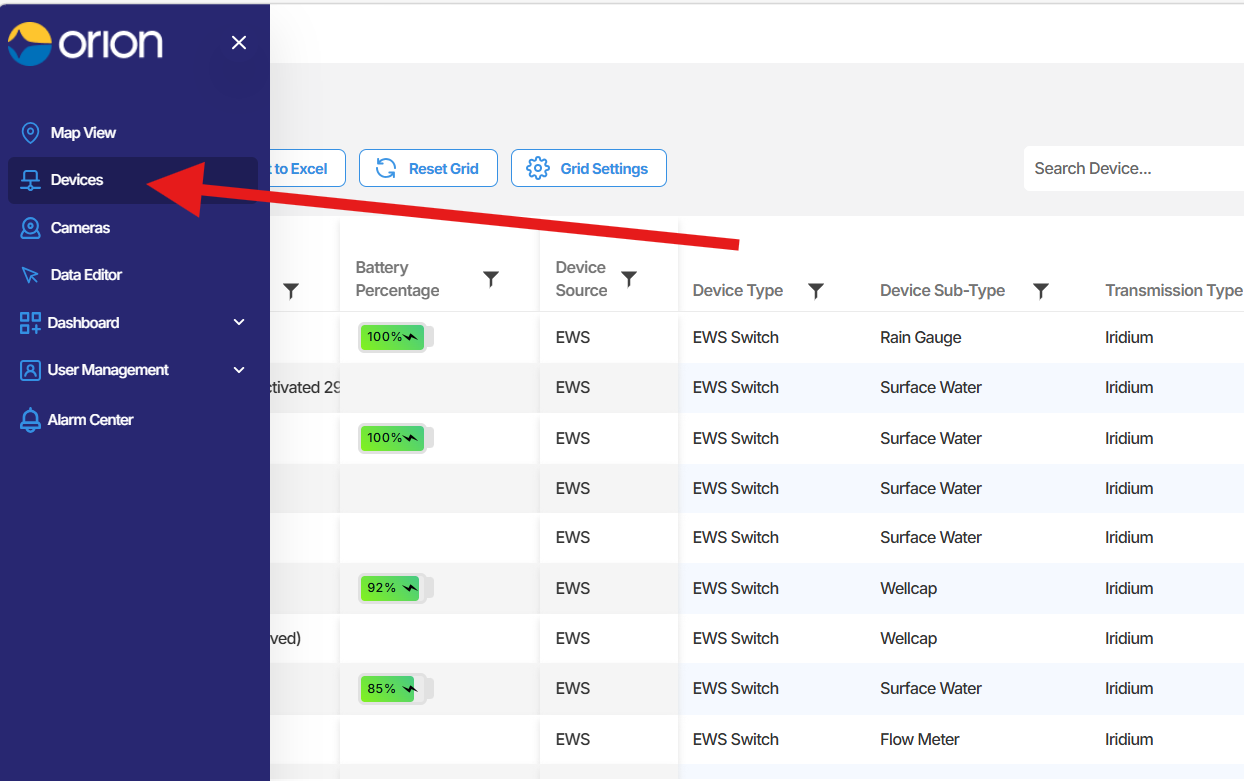
Section titled “Navigating to the device list”To access the device list, select the Devices tab from the navigation bar at the top right of the screen.
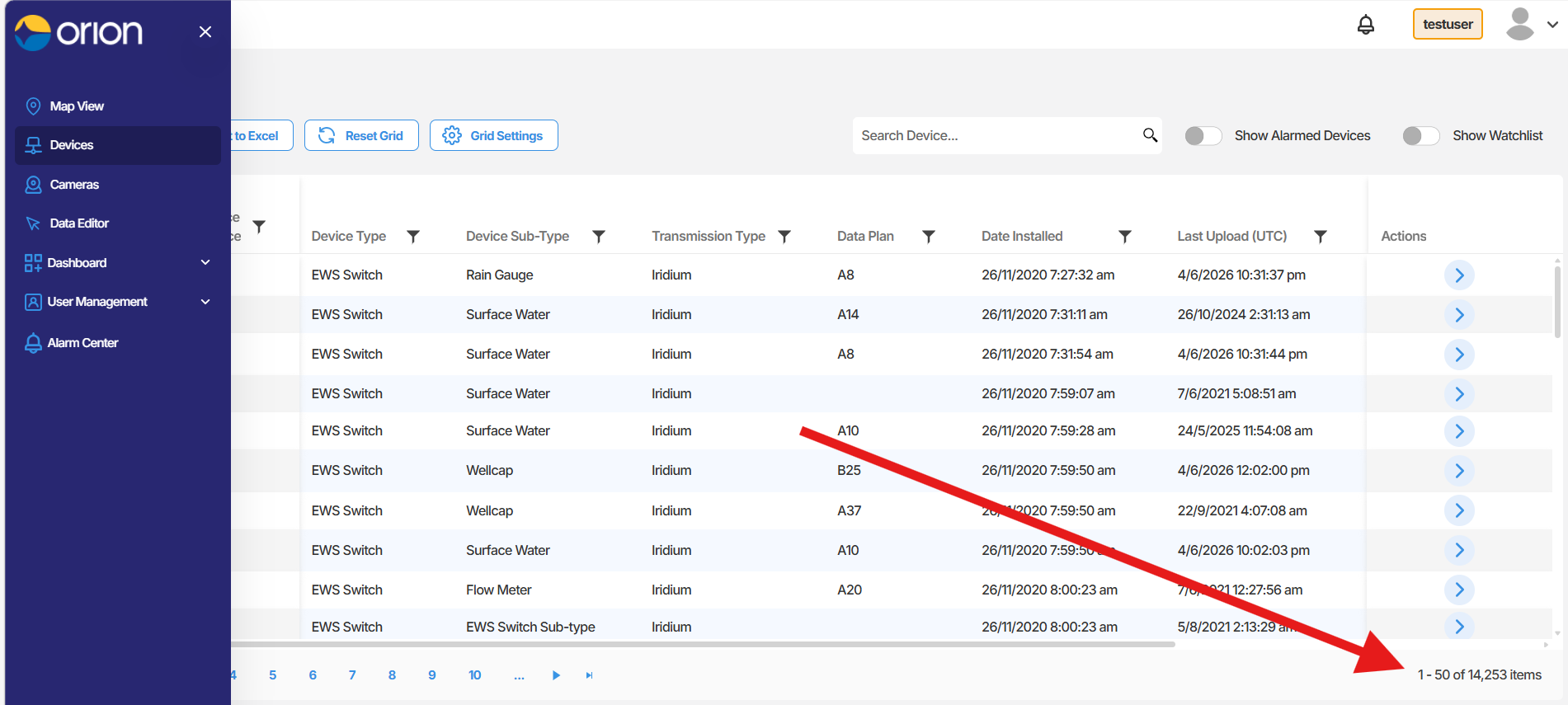
The device list loads with all devices associated with your account or profile. The total number of devices in your account is shown in the lower right of the page.
Customising the device list columns
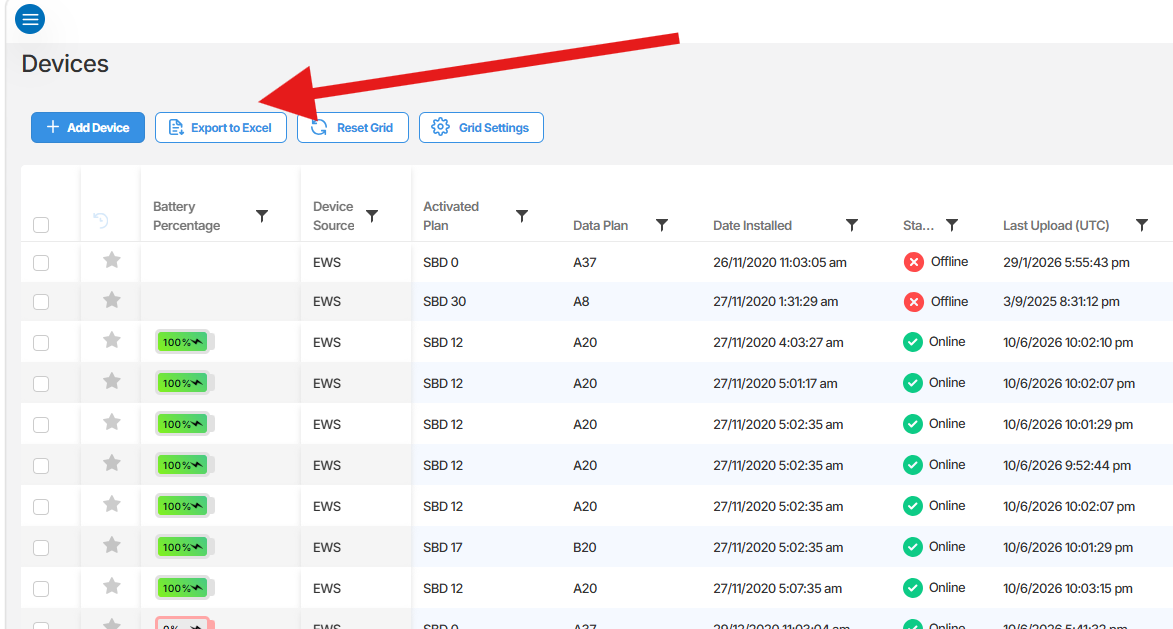
Section titled “Customising the device list columns”You can control which information is displayed in the device list using the Grid Settings button, located at the top left of the device list.
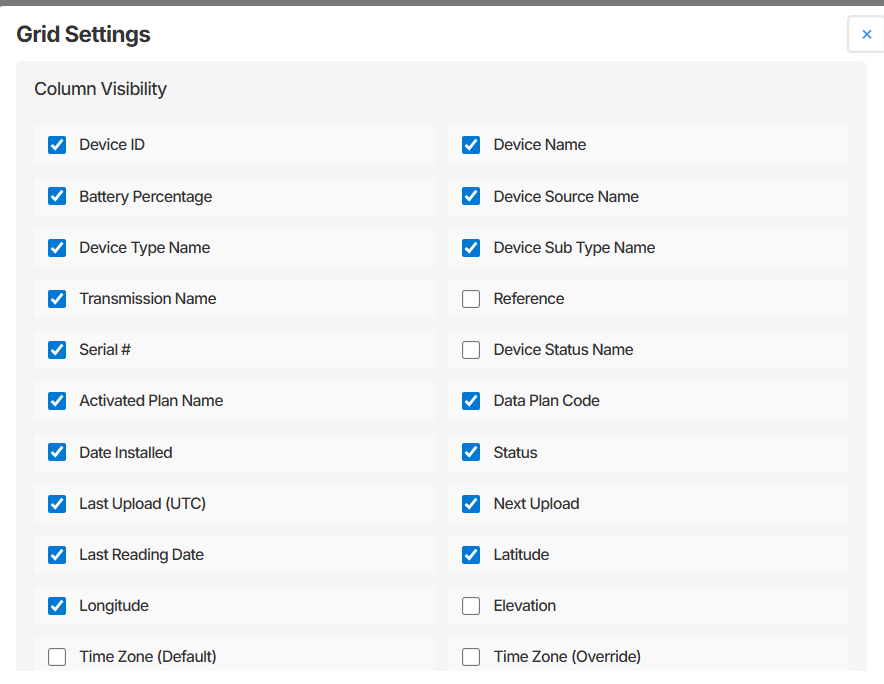
Selecting Grid Settings opens a panel where you can enable or disable columns such as:
- Device ID
- Device Name
- Battery Percentage
Enable the columns relevant to your workflow and close the panel to apply your selection. The list will update to reflect your chosen display settings.
Searching for a device
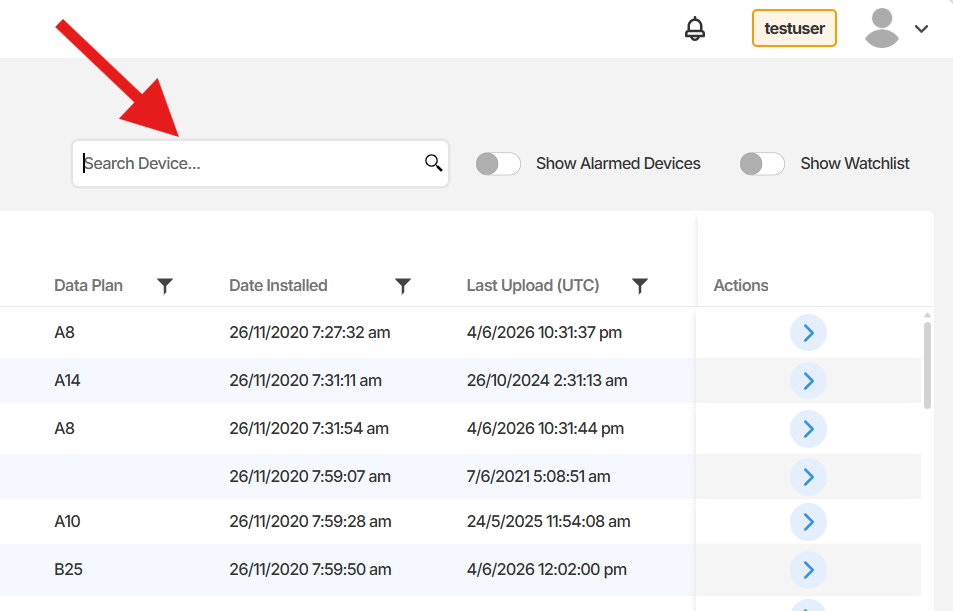
Section titled “Searching for a device”To locate a specific device, use the search field at the top of the device list. You can search by either:
- Device Name
- Serial Number
Begin typing in the search field and the list will filter to matching results in real time.
Exporting the device list
Section titled “Exporting the device list”To export your device list to a spreadsheet, select the Export to Excel button. The exported file will reflect your current Grid Settings, meaning only the columns you have enabled will be included in the export.
Summary
Section titled “Summary”The Devices section gives you a complete view of all devices in your Orion Data account. You can customise the columns displayed using Grid Settings, search for devices by name or serial number, and export the list to Excel at any time. The exported file reflects whichever columns you have enabled in your grid configuration.
Next Steps
Section titled “Next Steps”- Explore an individual device by selecting it from the list to view its sensors and configuration
- Configure your preferred columns in Grid Settings to suit your regular workflow
- Use the Export to Excel function to generate a device register for reporting or auditing purposes
Related articles
Section titled “Related articles”- Getting started with Orion Data
- Understanding the map view
- Configuring device alarms