

Configure alarms
Manage alarm recipients
Select notification recipients and add or update recipient records.
Recipients can receive notifications by SMS, email, or both. This article covers how to select recipients for an alarm, how to add new recipients to the platform, and how to configure the notification message.
Selecting a recipient
Section titled “Selecting a recipient”Recipients are selected from the Recipient Lists dropdown when configuring an alarm on a device’s Alerts tab. This dropdown contains all recipients that have been created in the platform.
- Navigate to Devices and select the relevant device.
- Select the Alerts tab and open the alarm you want to configure, or create a new one.
- Locate the Recipient Lists dropdown and select the recipient you want to notify.
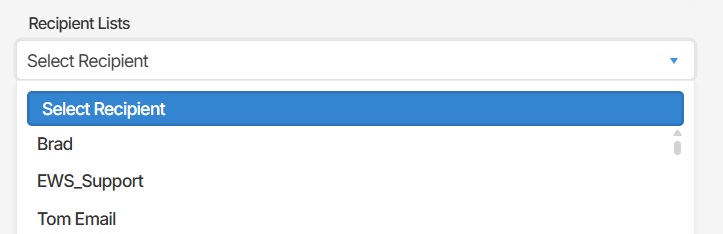
If the recipient you need is not in the list, you can add a new one. See Adding a new recipient below.
Adding a new recipient
Section titled “Adding a new recipient”If a recipient does not appear in the Recipient Lists dropdown, they need to be added to the platform first. This is restricted to administrators.
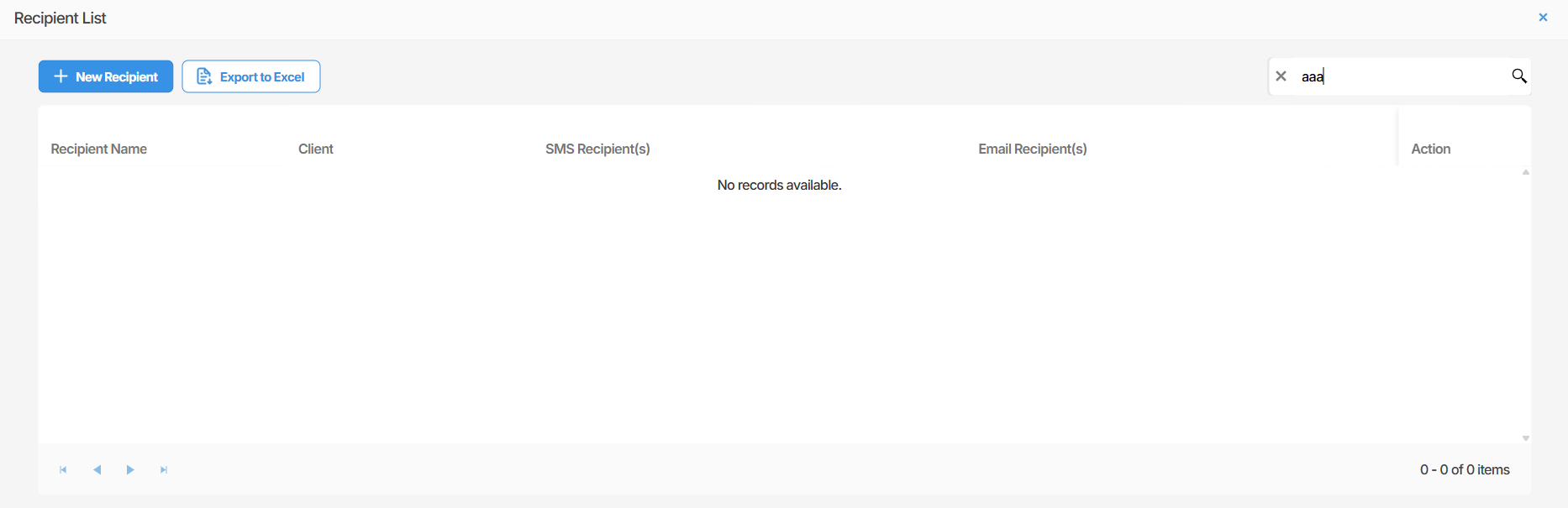
- Select the here link below the Recipient Lists dropdown. This opens the Recipient List management screen.

- Select + New Recipient.
- Enter the recipient’s name, SMS number, and/or email address as required.
- Save the new recipient.
The new recipient will then be available for selection in the Recipient Lists dropdown across all alarms on the platform.
Managing existing recipients
Section titled “Managing existing recipients”From the Recipient List screen, administrators can edit or remove existing recipients using the action buttons on each row:
- Select the edit icon to update a recipient’s name, phone number, or email address.
- Select the delete icon to remove a recipient from the platform entirely.
Note that removing a recipient will remove them from all alarms they are currently assigned to.
Summary
Section titled “Summary”Alarm recipients in Orion Data are selected from a shared list of contacts, each of which can be configured to receive SMS notifications, email notifications, or both. Recipients are managed by administrators via the Recipient List screen, accessible directly from the alarm configuration panel.
Next Steps
Section titled “Next Steps”- Review the recipients assigned to existing alarms to confirm contact details are current
- Enable Alarm Reminders on critical alarms where ongoing notification is required
- Ask your administrator to add any missing recipients to the platform