

Transform sensor data
Create your first calibration
Create and check a soft-sensor calibration using a Fahrenheit-to-Celsius worked example.
The example used is a simple unit conversion: transforming a raw temperature reading from Fahrenheit to Celsius. The same process applies to any calibration regardless of the transformation involved.
Before following this guide, ensure the soft sensor you want to calibrate has already been created on the device. If you have not yet created a soft sensor, see Create a soft sensor.
Navigate to the calibration
Section titled “Navigate to the calibration”- From the main navigation, select Devices.
- Select the device you want to work with.
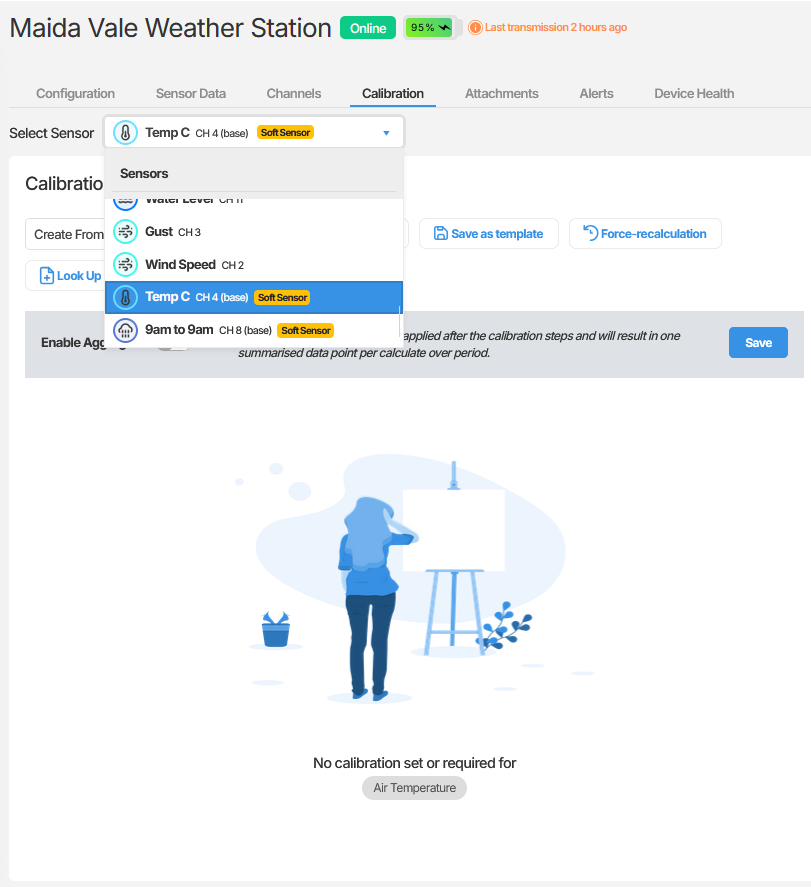
- Select Calibration.
- Select the soft sensor you want to calibrate.
Understand the starting state
Section titled “Understand the starting state”When you open a calibration for the first time, no groups exist. The calibration will pass the raw value through unchanged until at least one group is added.
Add a calibration group
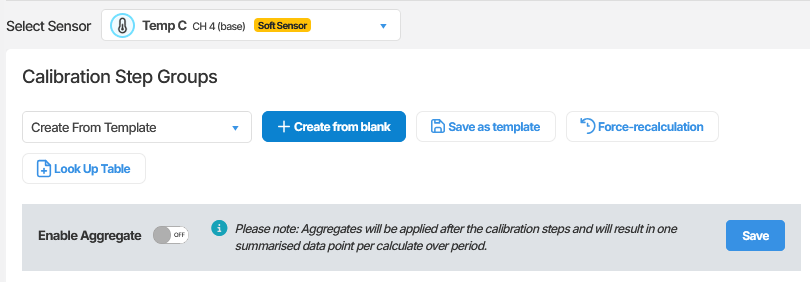
Section titled “Add a calibration group”- Select Create from blank.
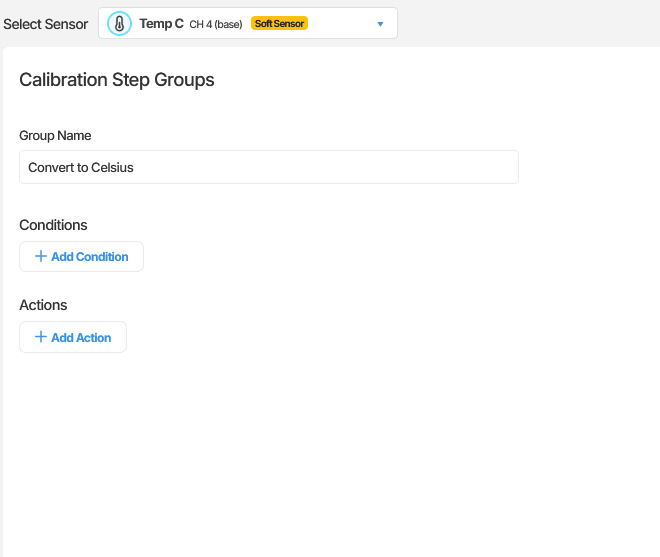
- Enter a name for the group. For this example, use “Convert to Celsius”.
Configure conditions
Section titled “Configure conditions”For this example, no conditions are required. The conversion should apply to every incoming data point. Leave the conditions section empty and proceed to the action steps.
If your calibration requires conditions, see Calibration conditions reference for a full description of the available condition types and operators.
Add action steps
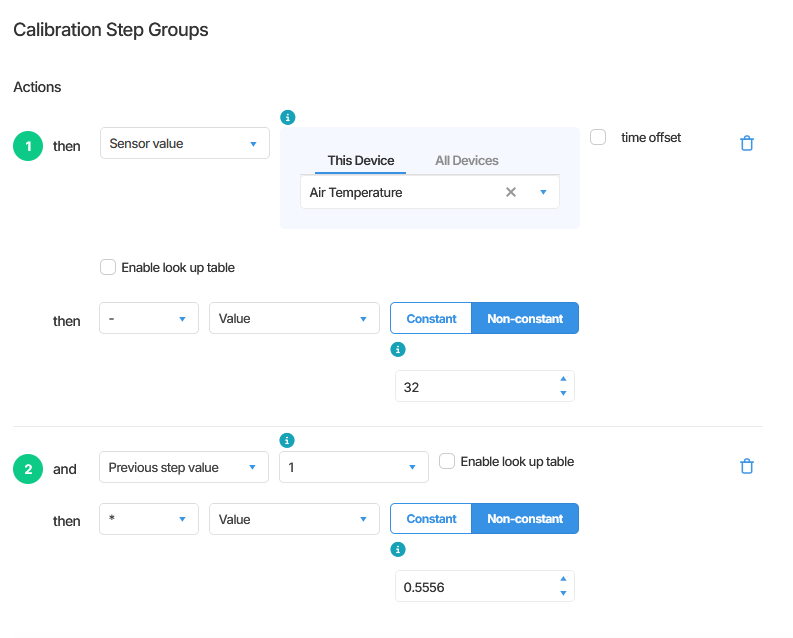
Section titled “Add action steps”Converting Fahrenheit to Celsius requires two steps:
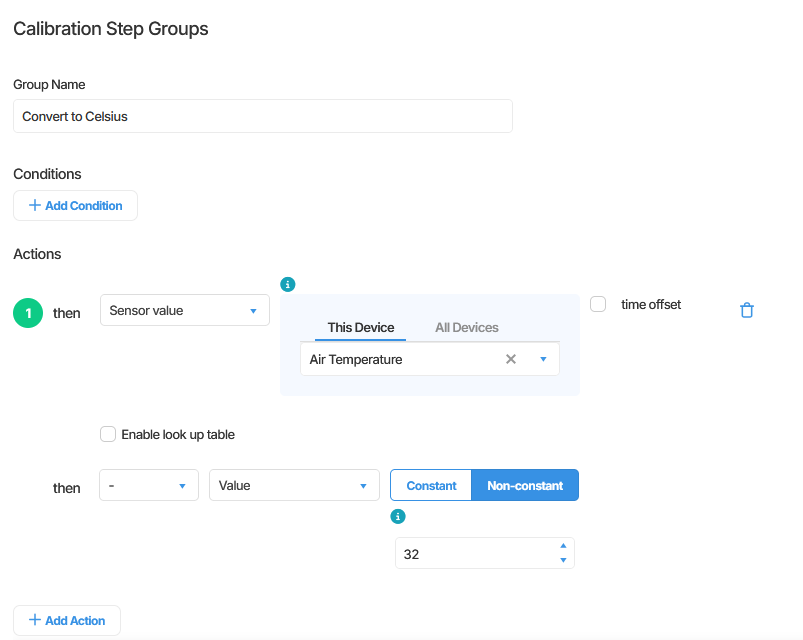
- Step 1: Subtract 32 from the raw temperature reading.
- Step 2: Multiply the result of Step 1 by 0.5556 (which is 5 divided by 9).
Add Step 1
- Select Add Action.
- Set the left side to Sensor Value and select the raw temperature sensor.
- Set the operator to -.
- Set the right side to Value and enter 32.
Add Step 2
- Select Add Action.
- Set the left side to Previous Step 1.
- Set the operator to *.
- Set the right side to Value and enter 0.5556.
Save the group
Section titled “Save the group”Once your steps are configured, save the group by selecting Save in the bottom right corner.
Verify the calibration
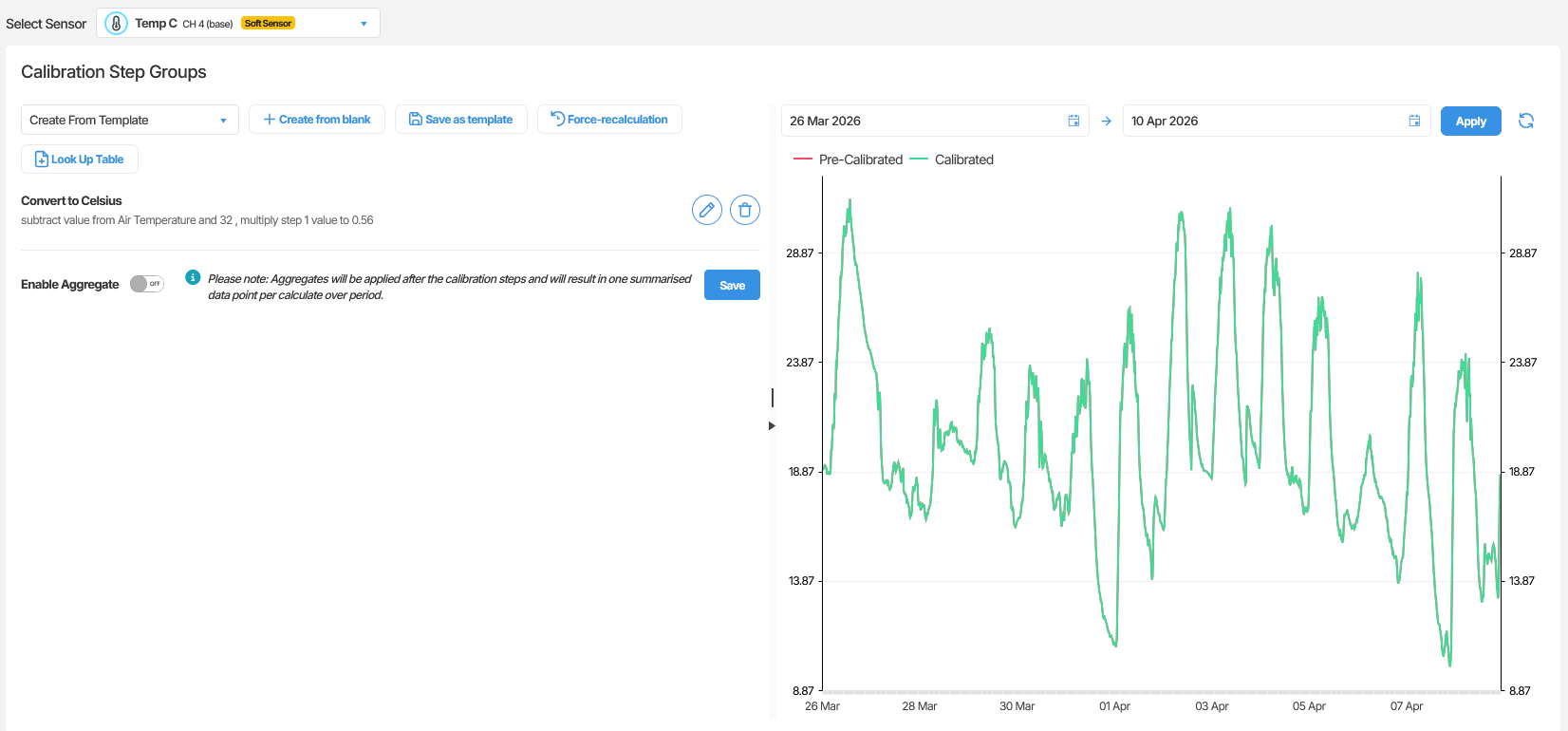
Section titled “Verify the calibration”After saving, incoming data points will be processed through the calibration. Check the soft sensor’s displayed value against an expected result to confirm the transformation is working correctly.
Summary
Section titled “Summary”This article walked through the process of setting up a calibration on a soft sensor, using a Fahrenheit to Celsius conversion as an example. The calibration uses a single group with two chained action steps: subtracting 32 from the raw reading and then multiplying by 0.5556. The same structure applies to any calibration regardless of complexity.
Next Steps
Section titled “Next Steps”- Learn how to build more complex multi-group calibrations: see Working with calibration groups
- Explore the full range of action step types available: see Action step types reference
- Reuse your calibration logic across multiple devices: see Using calibration templates
Related articles
Section titled “Related articles”- Working with calibration groups
- Calibration action step types
- Calibration operators
- Calibration conditions
- Using calibration templates
- Create a soft sensor