

Manage access
Assign a device to a site
Select one or more sites in a device configuration and save the assignment.
Devices can also be assigned to multiple clients. This article explains how to manage site and client assignments from the device configuration page.
Before you begin
Section titled “Before you begin”The Sites available to you depend on your user role:
- Tenant administrators can create multiple Sites and assign them to devices directly.
- Standard users cannot create or assign Sites. If you are a standard user and a Site assignment needs to be added or changed, contact your tenant administrator or EWS Australia.
A device must be assigned to at least one Site to be visible in Orion Data. A device with no Site assignment will not appear in the platform. If you cannot locate a device, confirm it has at least one Site assigned. If the expected Site is not available in your list, contact EWS Australia to have it added to your profile.
Assigning a site to a device
Section titled “Assigning a site to a device”- Navigate to the Devices section from the main menu, or type an IMEI, device name, or serial number to find the device.
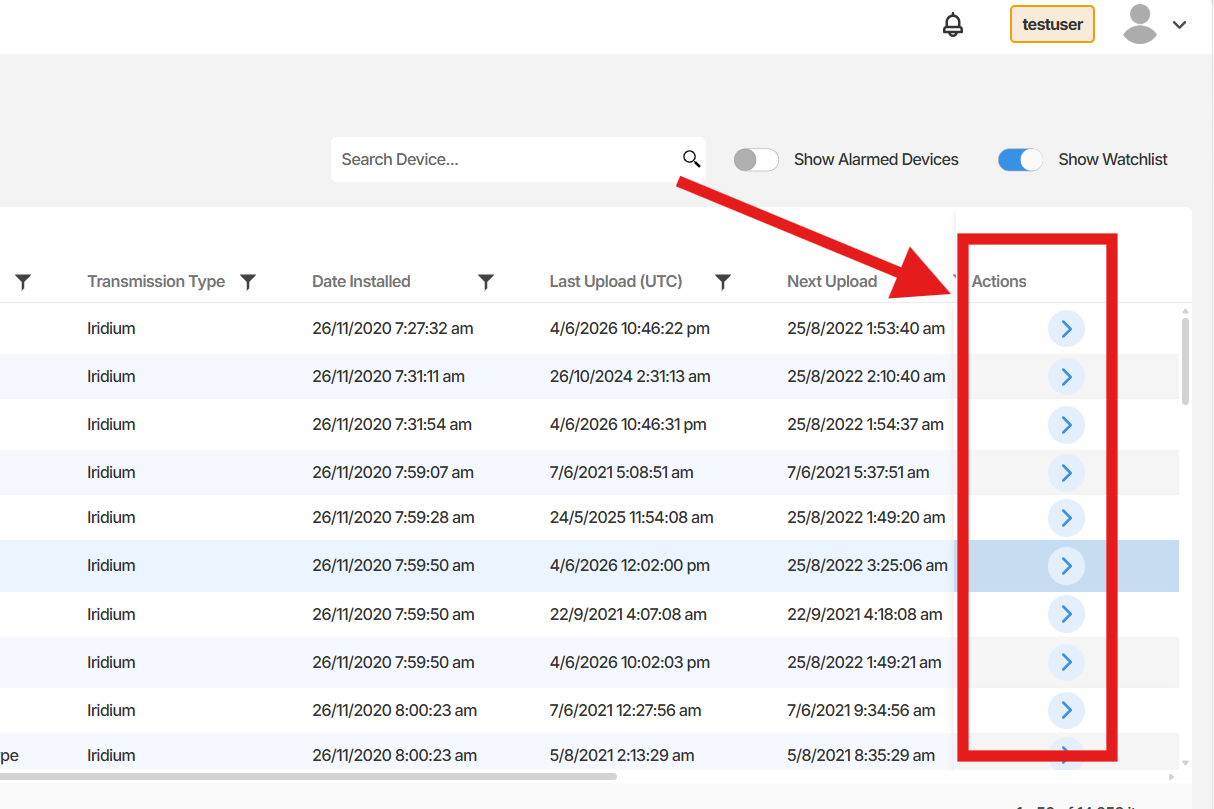
- Locate the device you want to configure and click the right-arrow icon on the right side of the device row to open the device configuration page.
- On the device configuration page, scroll down to the final section.
- Locate the Access and Assignment section.
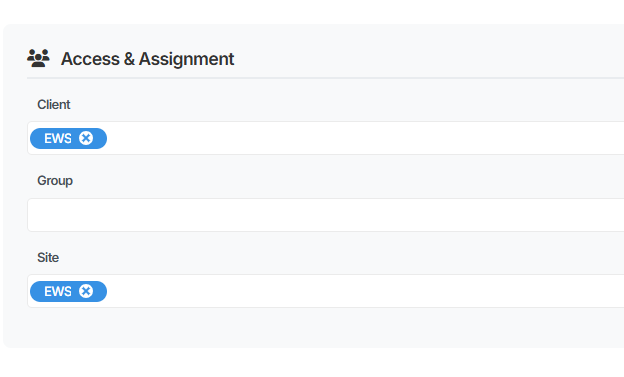 Click in the Site field. A list of available Sites will appear.
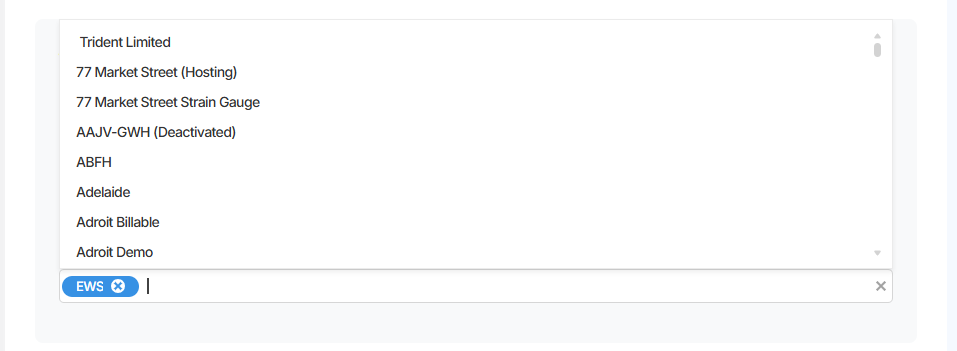
- Select one or more Sites to assign to the device. You can assign the device to multiple Sites if required.
- Click Update Device to save the assignment.
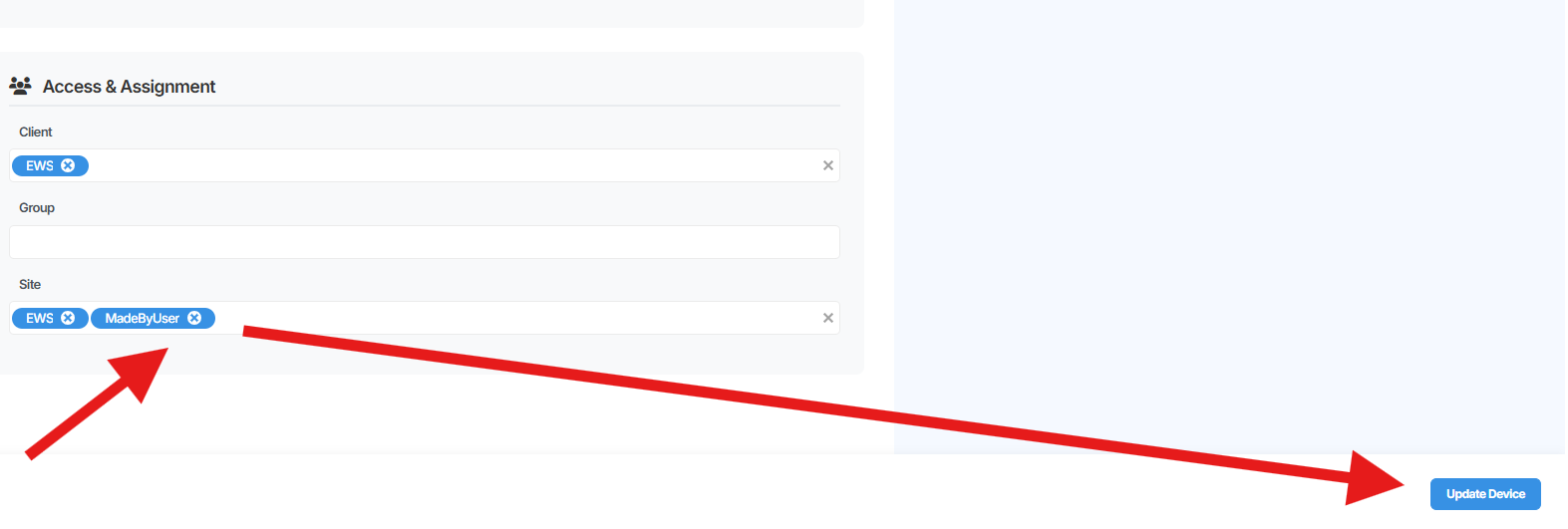 The device is now assigned to the selected Site or Sites.
Assigning a device to a client
Section titled “Assigning a device to a client”In addition to Sites, a device can be assigned to one or more clients from the same Access and Assignment section.
- In the Access and Assignment section, locate the Client field.
- Click in the Client field and select one or more clients from the list.
- Click Update Device to save.
Why assign devices to sites?
Section titled “Why assign devices to sites?”Assigning devices to Sites makes it easier to identify where a device is installed and to organise your device list by location. When managing a large number of devices across multiple locations, Site assignments provide a clear and consistent way to filter, search, and understand your deployment. Assigning a device to multiple Sites is useful when a device is relevant to more than one location or organisational grouping.
Summary
Section titled “Summary”This article walked you through assigning a device to one or more Sites in Orion Data, and outlined how client assignments work from the same Access and Assignment section. A device must have at least one Site assigned to be visible in the platform. Tenant administrators can create and assign Sites directly, while standard users must contact their tenant administrator or EWS Australia for assistance.
Next Steps
Section titled “Next Steps”- Review all devices in your account to confirm each device has at least one Site assigned.
- Contact your tenant administrator or EWS Australia if a required Site is missing from your available options.
- Explore the Map View to see how site-assigned devices appear geographically across your deployment.