

Set up devices
Set a device location
Enter device coordinates, convert them when needed and save the map location.
Devices do not have built-in GPS functionality, so coordinates must be sourced and entered by the user. Keeping location data accurate ensures devices appear correctly on the Map View and that site records are reliable.
Before you begin
Section titled “Before you begin”You will need the latitude and longitude coordinates for the device’s installation location. Because devices do not record their own position, coordinates must be obtained externally. Common methods include:
- Recording coordinates on-site using a smartphone GPS app at the time of installation
- Checking the metadata embedded in photos taken at the installation site (most smartphones record GPS coordinates in photo file metadata)
- Using a dedicated handheld GPS unit
- Locating the site on a mapping application such as Google Maps and copying the coordinates
- Referencing site survey or engineering drawings that include coordinate data
The most accurate coordinates are typically obtained at the time of installation, before the device is left unattended.
Entering the device location
Section titled “Entering the device location”- Navigate to Devices and select the device you want to update.
- Select the Configuration tab.

- Scroll down to the Location Map panel. Below the map, locate the Coordinate Conversion section.
- Enter the device’s Latitude and Longitude into the respective fields.
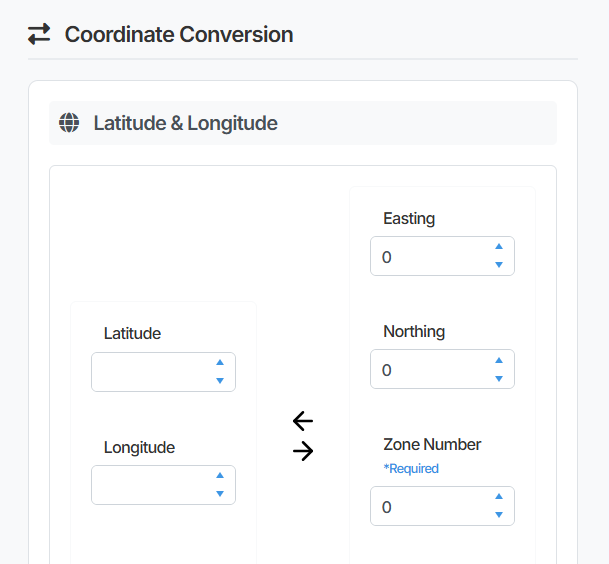
- Select Update Device to save the location.
The map pin in the Location Map panel will update to reflect the coordinates entered.
Using the coordinate conversion tool
Section titled “Using the coordinate conversion tool”If your coordinates are in UTM format (Easting and Northing) rather than decimal latitude and longitude, the Coordinate Conversion tool can convert between the two formats for you.
Enter values into either side of the tool and use the conversion arrows to populate the other format.
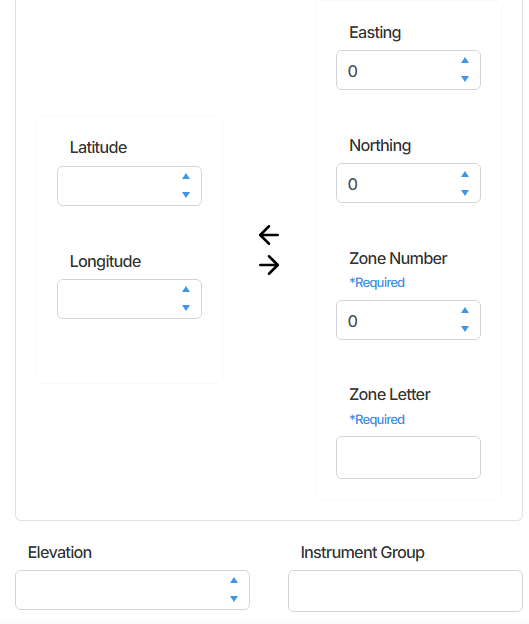
Once converted, confirm the latitude and longitude values are correct, then select Update Device to save.
Summary
Section titled “Summary”Device locations in Orion Data are set manually via the Configuration tab. Coordinates can be entered as decimal latitude and longitude, or converted from UTM format using the built-in Coordinate Conversion tool. Selecting Update Device saves the location and updates the device’s position on the map.
Next Steps
Section titled “Next Steps”- Verify the device pin appears in the correct position on the Map View
- Review other device configuration settings such as Device Name, Device Type, and Device Status
- If installing multiple devices, establish a consistent process for recording coordinates on-site at time of installation