

Configure alarms
Create a sensor alarm
Create a sensor alarm with a threshold, reset option, recipients and notification message.
Alarms notify selected recipients when a sensor reading reaches a defined value, helping you respond to conditions that require attention.
Before you begin
Section titled “Before you begin”To create an alarm, you will need access to the device containing the sensor you want to monitor. If you do not have access to a device, contact your administrator.
Steps to create an alarm
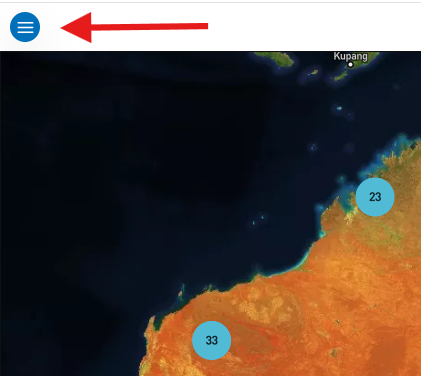
Section titled “Steps to create an alarm”- Select the menu icon (three horizontal lines) in the top left corner of the screen to open the main navigation menu.
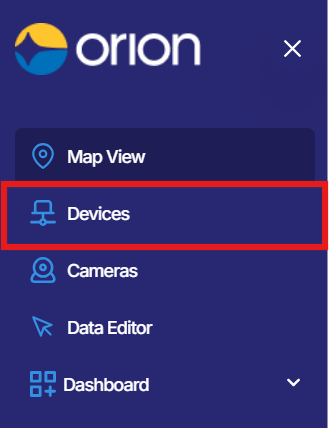
- Select Devices from the menu. The Devices page will open, displaying a list of all devices available to you.
- Locate the device containing the sensor you wish to configure, then select the arrow icon on the far right of that device row to open the device.
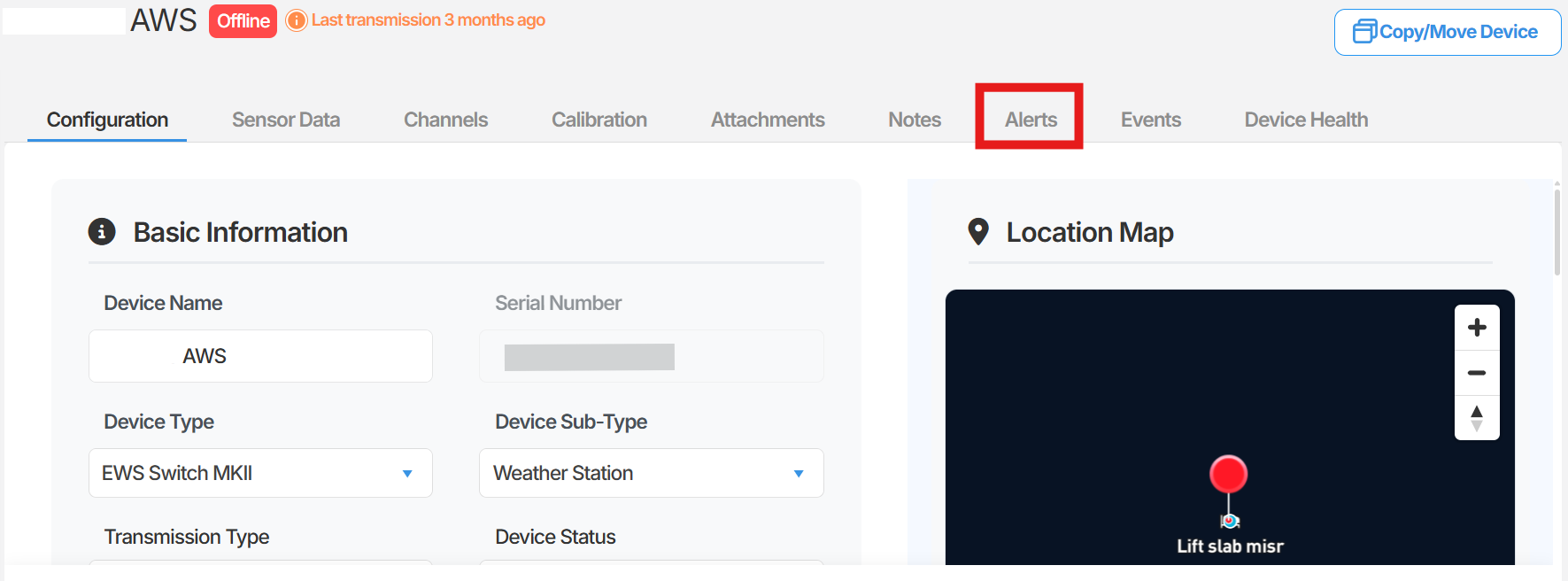
- Within the device, select the Alerts tab.
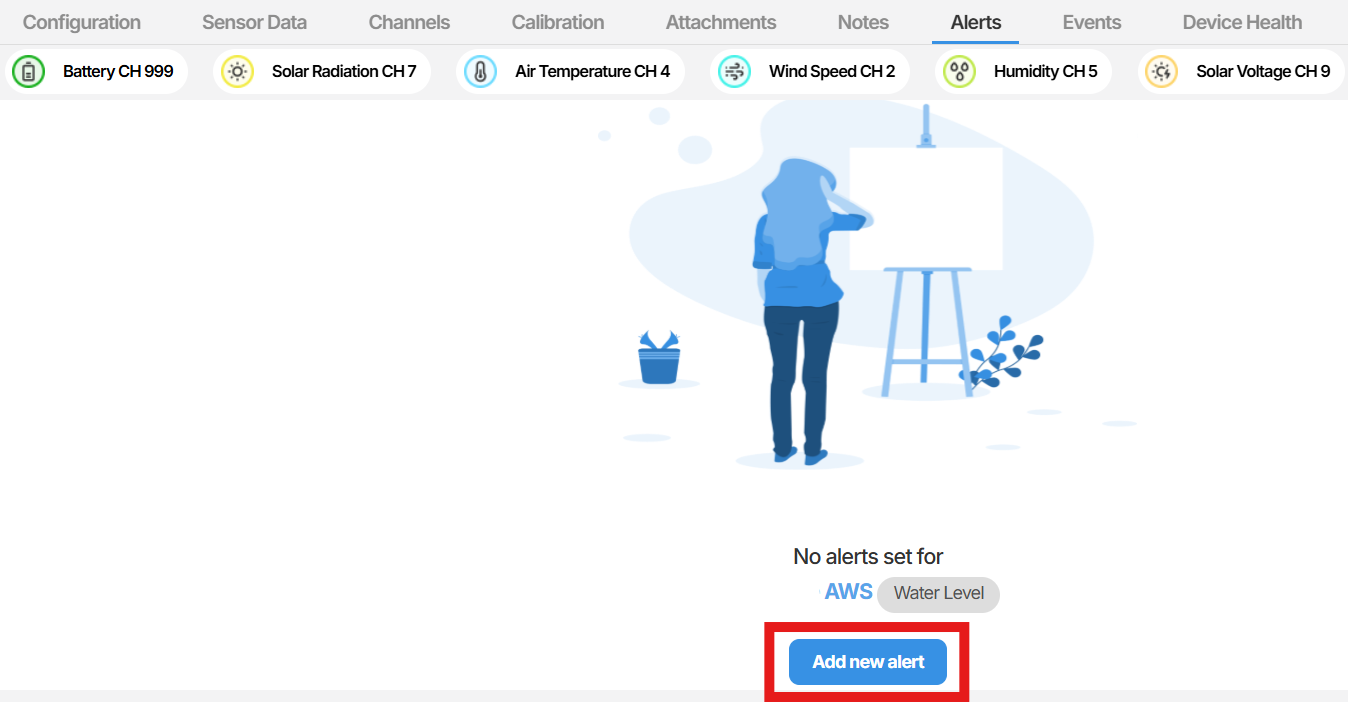
- On the Alerts page, select Add new alert. If no alarms have been configured on this sensor yet, this option appears in the centre of the screen. If alarms already exist, it appears in the top left of the screen.
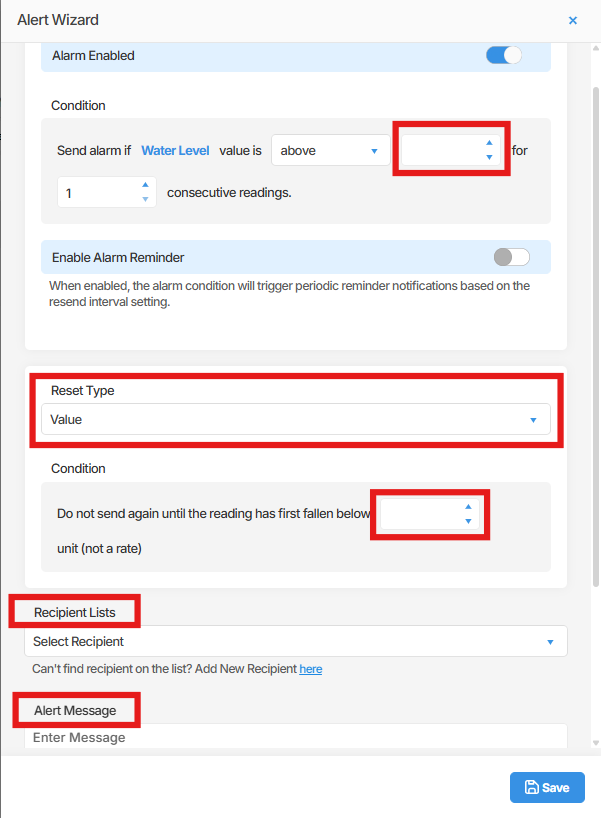
- A configuration panel will open. Complete the following fields:
-
- Value - Enter the threshold value that will trigger the alarm when the sensor reading reaches it.
- Reset type - Select how the alarm resets once triggered. You can choose from a drop-down box, a value-based reset (the alarm resets when the reading returns to a defined value) or a date-based reset.
- Recipients - Select the individuals who will receive a notification when this alarm triggers.
- Message - Enter the message that will be sent to recipients when the alarm triggers.
- Once all fields are completed, select Save.
Summary
Section titled “Summary”This article walked through the steps to create an alarm on a sensor in Orion Data. You learned how to navigate to a device, access the Alerts tab, and configure the threshold value, reset type, recipients, and notification message for a new alarm.
Next Steps
Section titled “Next Steps”- Review your active alarms to confirm they are configured correctly
- Add or update alarm recipients to ensure the right people are notified
- Explore alarm templates to apply consistent alarm settings across multiple sensors
Related articles
Section titled “Related articles”- Understanding alarm reset types in Orion Data
- Managing alarm recipients in Orion Data
- Viewing alarm history in the Alarm Centre
- Getting started with devices in Orion Data