

Set up devices
Create a soft sensor
Add a soft sensor to a device, select its sensor type and base sensor, then save it.
Unlike physical sensors, which record measurements from hardware, soft sensors are configured within the platform and derive their values based on a defined sensor type and a base sensor. This article explains how to create a soft sensor from within a device.
Before you begin
Section titled “Before you begin”Soft sensors are configured at the device level, within the Channels section of a device. You will need to have Super User access to the relevant device before proceeding.
Steps to create a soft sensor
Section titled “Steps to create a soft sensor”- Select the menu icon (three horizontal lines) in the top left-hand corner of the screen to open the main navigation menu.
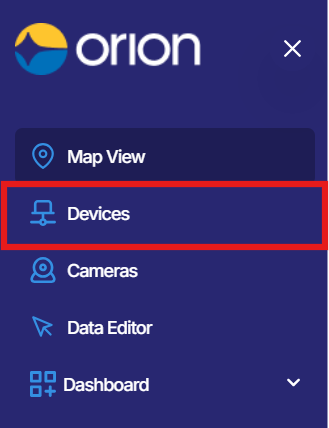
- Select Devices from the menu. The Devices page will open.
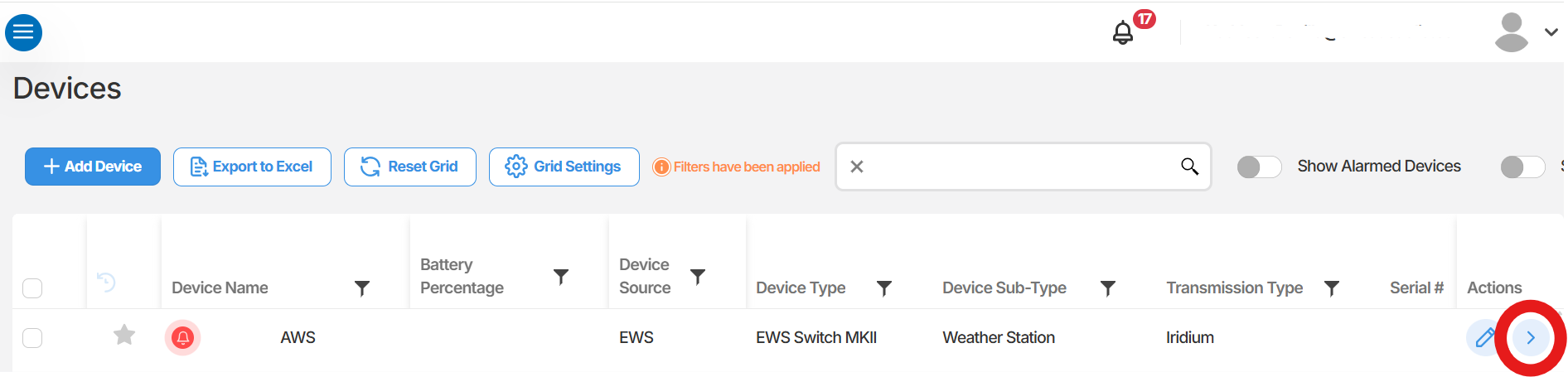
- Locate the device you wish to add a soft sensor to, then select the arrow icon on the far right of that device row to open the device.
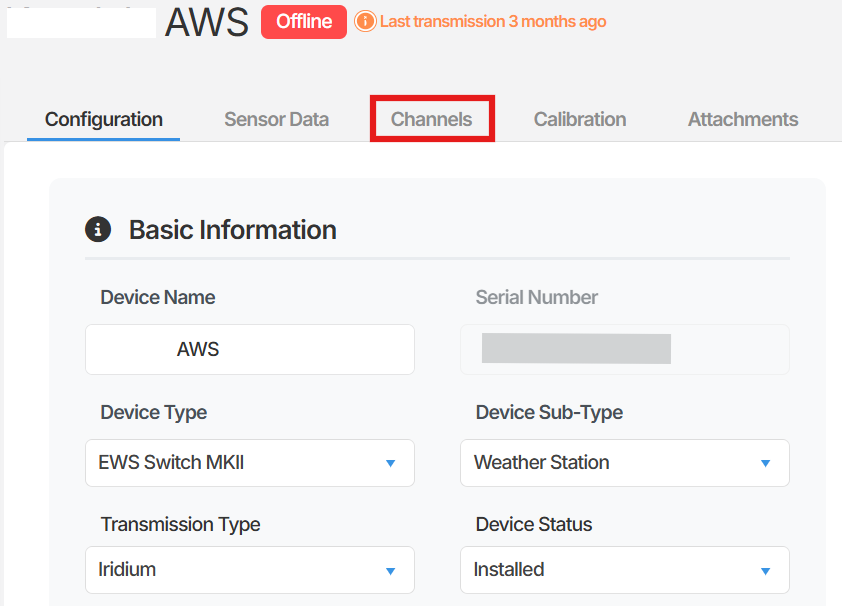
- Within the device, select Channels.
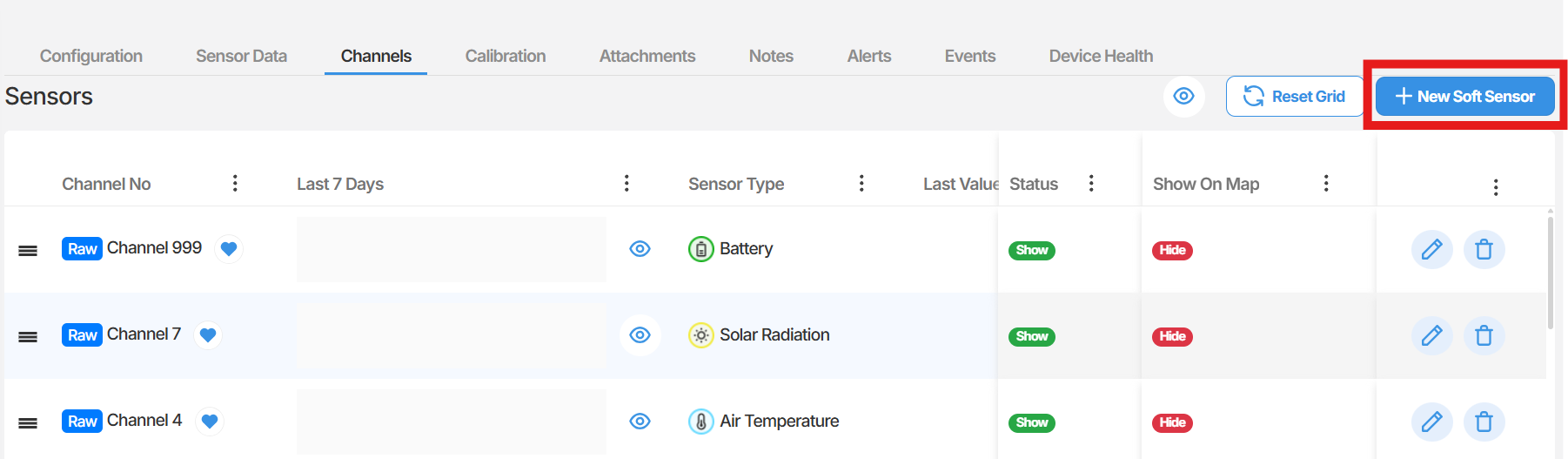
- On the Channels page, select + New Soft Sensor on the right-hand side of the screen.
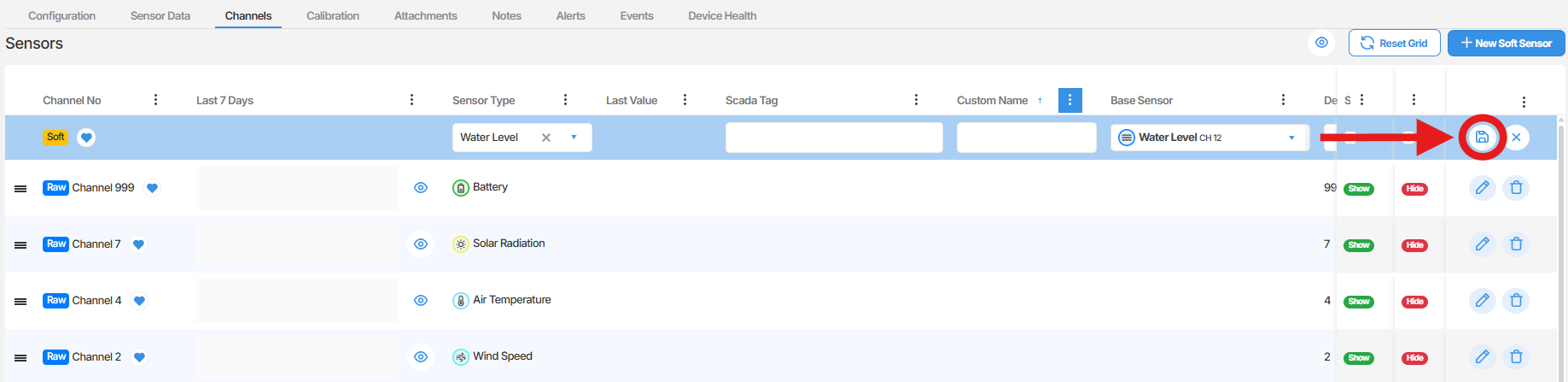
- A new row will appear. Fill in the following fields:
-
- Sensor Type - Select the type that describes what this soft sensor will measure.
- Base Sensor - Select the existing sensor that this soft sensor will be derived from.

- Once all fields are completed, select Save on the right-hand side of the row to save the soft sensor.
Summary
This article explained how to create a soft sensor within a device in Orion Data. Soft sensors are added from the Channels section of a device and require a Sensor Type, SCADA Tag, and Base Sensor to be configured before saving.
Next Steps
Section titled “Next Steps”- Review the channels list to confirm the soft sensor has been saved correctly.
- Apply a calibration to the new soft sensor if data transformation is required.
- Configure an alarm on the soft sensor to monitor its derived values.
Related articles
Section titled “Related articles”- Calibrations and sensor values
- Setting up sensor alarms in Orion Data
- Managing device channels in Orion Data