

Transform sensor data
Save a calibration template
Save configured calibration groups as a template and mark inputs that require per-device values.
This article covers how to save a calibration as a template, using the DTW Calibration and 9am Rainfall Calibration as worked examples.
Before you begin
Section titled “Before you begin”This article assumes you have already configured the calibration you want to save. If you have not yet set up your calibration, refer to the calibrations documentation before proceeding.
Navigate to Devices > Calibrations to access the calibration screen.
Understanding the Required field
Section titled “Understanding the Required field”When saving a template, you will be prompted to mark certain inputs as Required. This tells Orion Data which fields must be filled in each time the template is applied to a new device.
Use the following rule when deciding what to mark as Required:
- Mark as Required any input that will differ between devices, such as a sensor reference or a variable value.
- Do not mark as Required any input that is a constant, a sensor that will not differ between devices, or any value that is part of a fixed calculation.
DTW Calibration
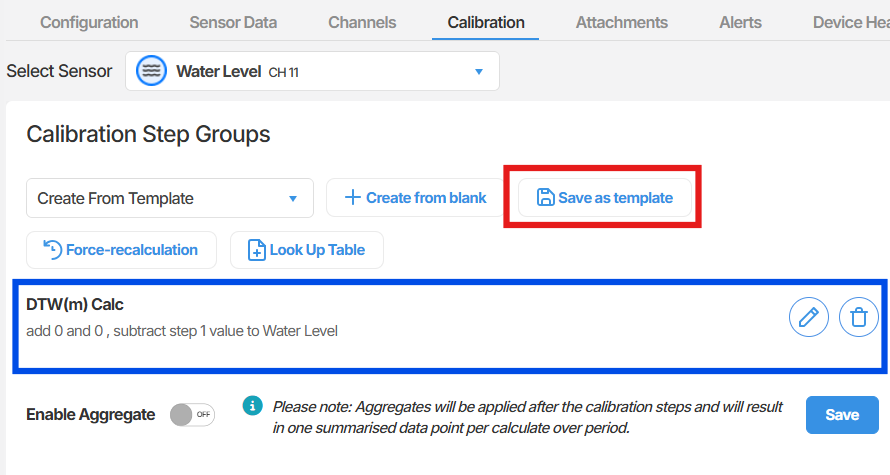
Section titled “DTW Calibration”Once you have finished configuring your DTW Calibration, follow these steps to save it as a template.
- Click Save as template.
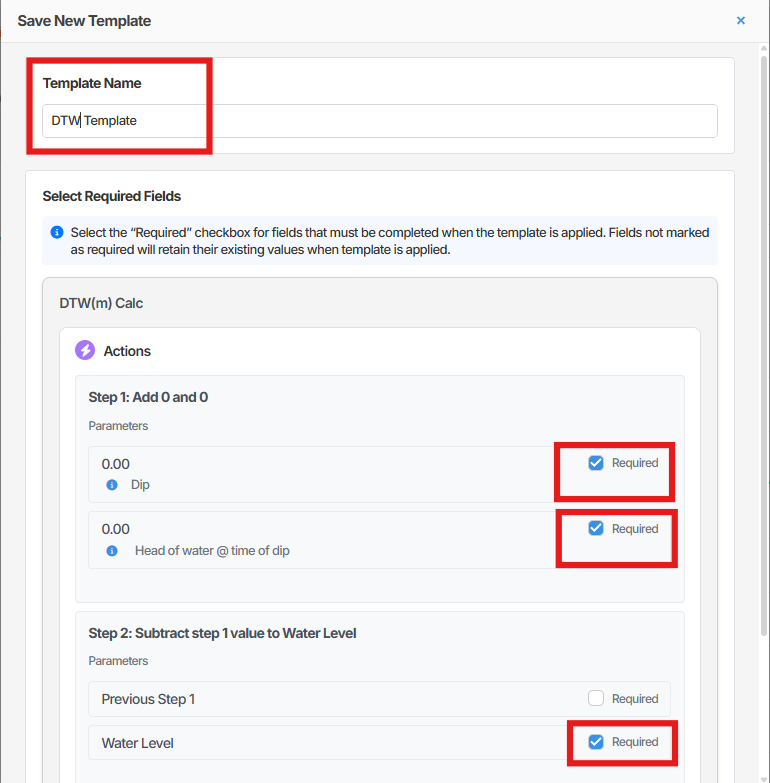
- Enter a name for the template in the name field.
- Tick Required for any inputs that will differ between devices. Do not tick Required for constants, fixed sensors, or calculated values.
- Click Save Template.

9am Rainfall Calibration
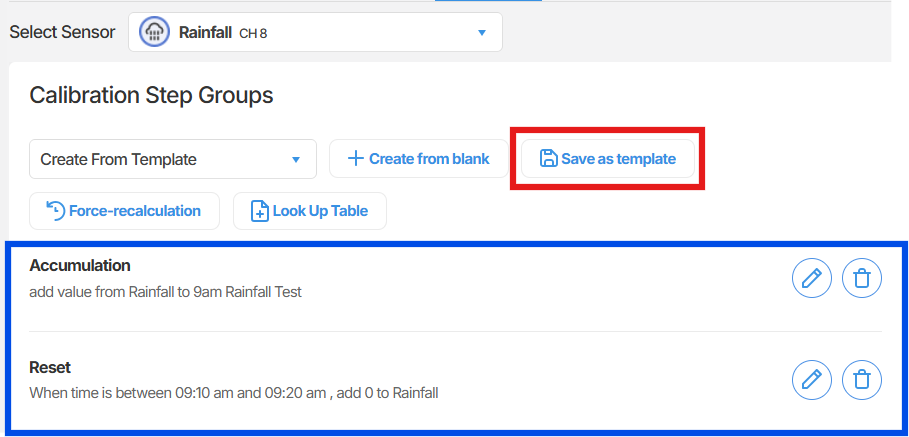
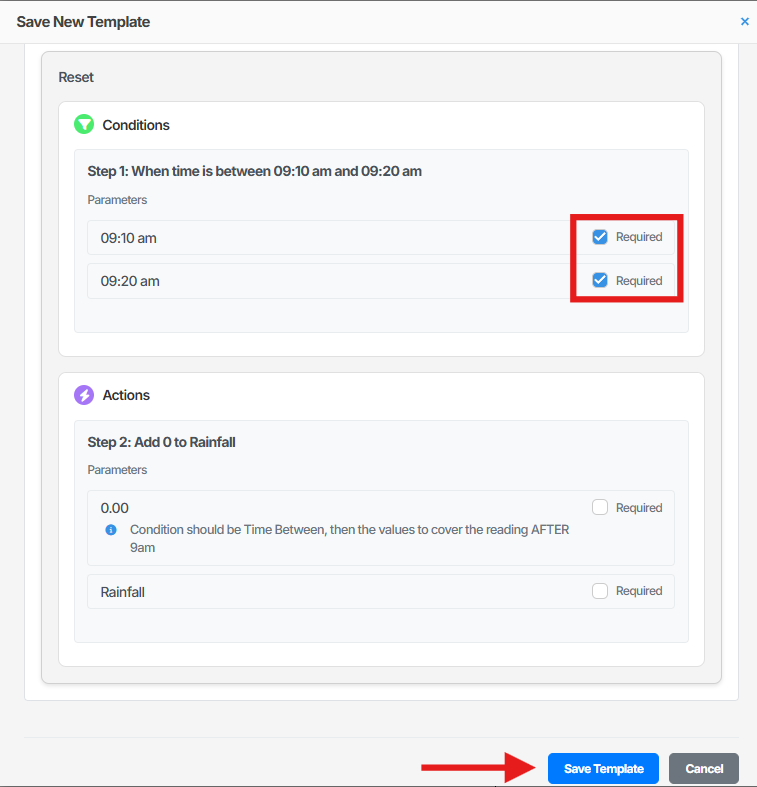
Section titled “9am Rainfall Calibration”The 9am Rainfall Calibration consists of two separate calibrations saved into one template: Accumulation and Reset. Follow the steps below for each.
Once you have finished configuring your 9am Rainfall Calibration, follow these steps to save it as a template.
- Click Save as template. A pop-up window will open.
- Enter a name for the template in the name field.
- Tick Required for any inputs that will differ between devices. Do not tick Required for constants, fixed sensors, or calculated values.
- Click Save Template.
Accumulation
Section titled “Accumulation”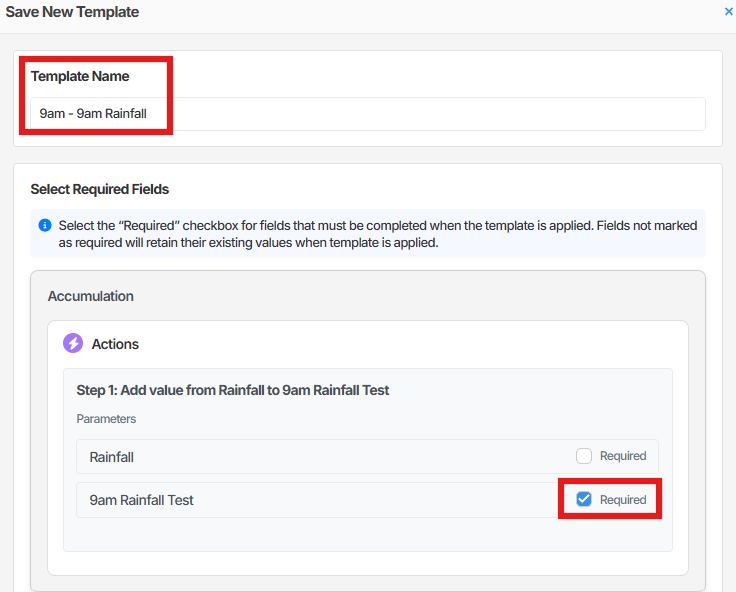
Summary
Section titled “Summary”This article covered how to save a configured calibration as a reusable template in Orion Data. You learned how to name a template, apply the Required field correctly, and save the template for future use. Two worked examples were provided: the DTW Calibration and the 9am Rainfall Calibration, which includes separate Accumulation and Reset calibrations within one template.
Next Steps
Section titled “Next Steps”- Apply a saved calibration template to a new device
- Review and edit an existing calibration template
- Configure a new calibration from scratch
Related articles
Section titled “Related articles”- Calibrations and sensor values
- Applying a calibration template to a device
- Configuring sensor calibrations