

Manage access
Assign a device to a client
Select an existing client in a device configuration and save the assignment.
This article explains how to assign a client to a device and what to consider when managing multiple clients.
Before you begin
Section titled “Before you begin”Client assignment requires that a client has already been created by a tenant administrator or assigned to your profile by EWS Australia. If no clients are available for selection, contact your EWS Australia administrator to have one created or assigned to your account.
Assigning a client to a device
Section titled “Assigning a client to a device”- Navigate to the Device Management page from the main menu.
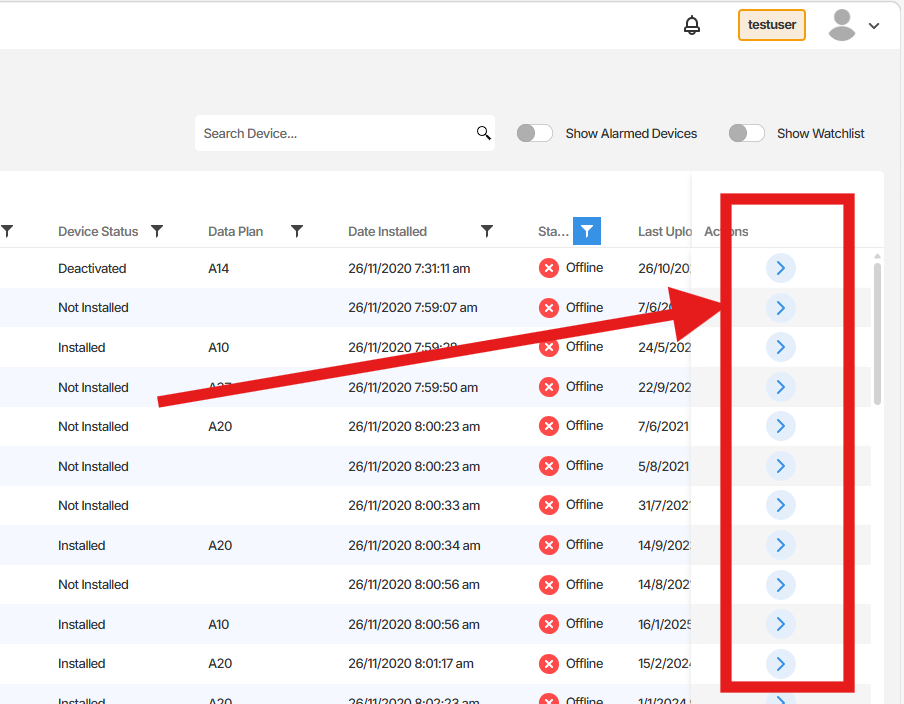
- Locate the device you want to assign a client to, then click the right-arrow icon on the right side of the device row to open the Device Configuration page.
- Scroll down to the bottom of the Device Configuration page to find the Access and Assignment section.
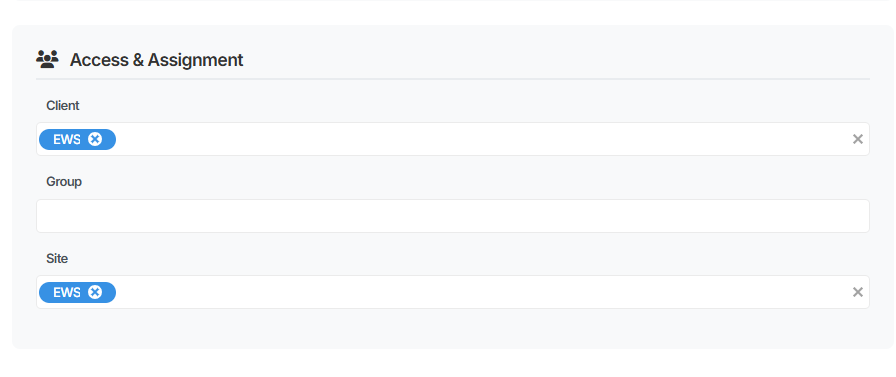 Within the Access and Assignment section, locate the Client field and click inside it. A list of available clients will appear.
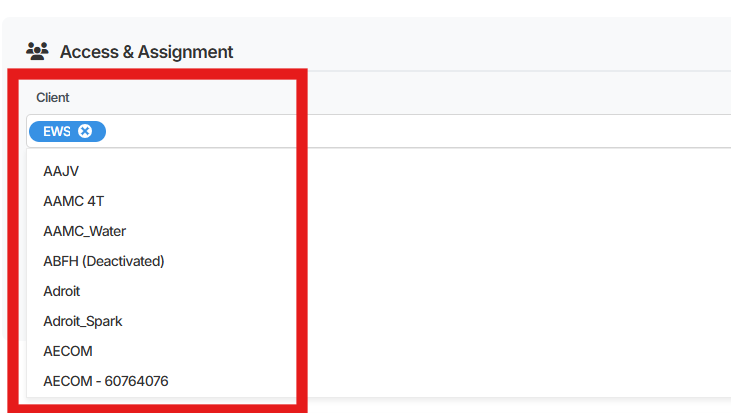 Select the appropriate client from the list.
- Click Update Device to save the assignment.
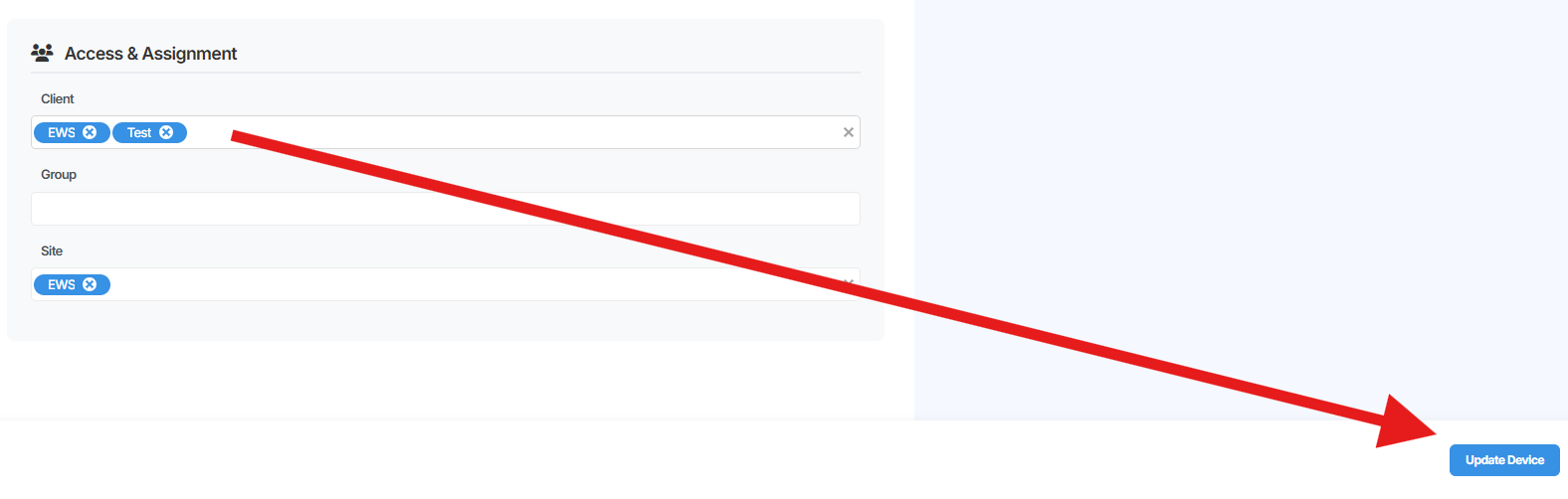 The device is now tagged with the selected client and will be associated with that client’s view going forward.
Managing multiple clients
Section titled “Managing multiple clients”If your organisation monitors devices on behalf of multiple clients, you can create additional clients in Orion Data and tag each device accordingly. This ensures that devices belonging to different clients are clearly separated and managed independently within the platform.
Summary
Section titled “Summary”This article covered how to navigate to the Access and Assignment section of a device’s configuration page and assign a client to it using the Client field. Saving the assignment with Update Device ensures the device is correctly tagged and separated from other clients’ devices within Orion Data.
Next Steps
Section titled “Next Steps”- Create additional clients in Orion Data to support multi-client device management
- Review which devices require client assignment across your device list
- Confirm with your EWS Australia administrator that the correct clients are available on your account
Related articles
Section titled “Related articles”- Managing devices in Orion Data
- Understanding user roles and access control
- Inviting and managing users in Orion Data