

Manage access
Create a site
Create a named site under the appropriate tenant and save it in User Management.
This article explains how to create a new site from the User Management section. You must have the appropriate administrative permissions to complete this process.
Note: You must have the appropriate permissions to access User Management. If you do not see this option, contact your platform administrator.
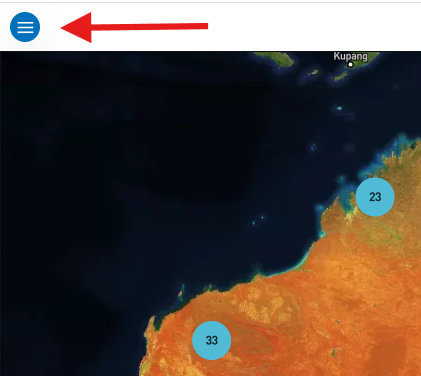
- Select the menu icon (three horizontal lines) in the top left-hand corner of the screen to open the navigation menu.
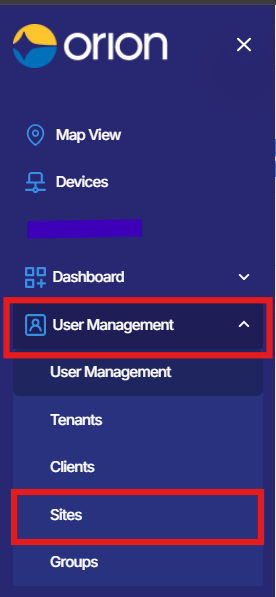
- Select User Management from the navigation menu, then select Sites.
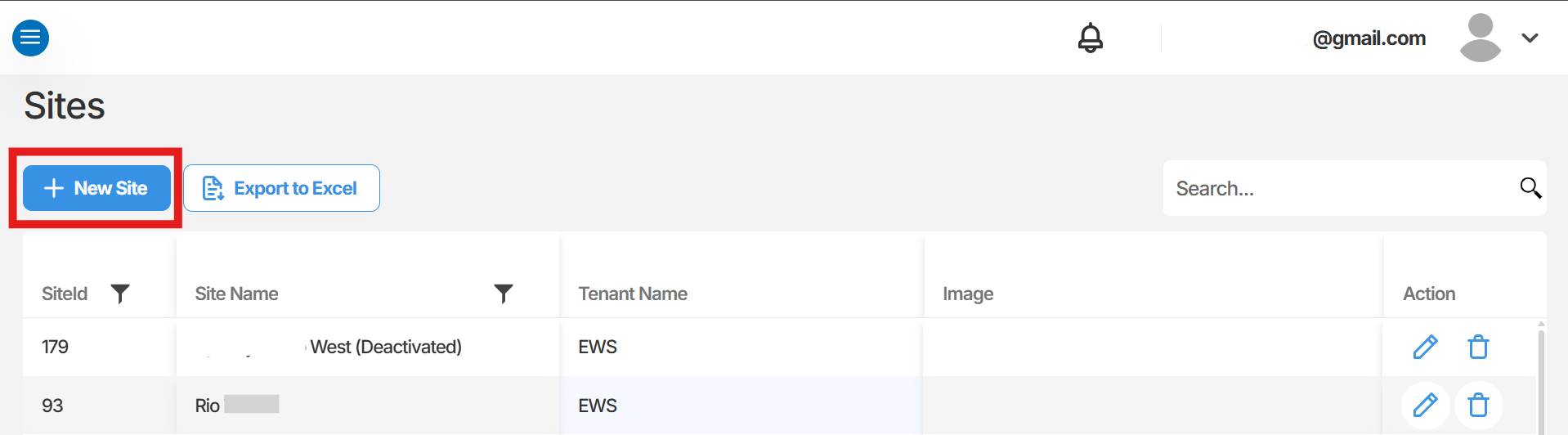
- When the Sites page loads, select + New Site.
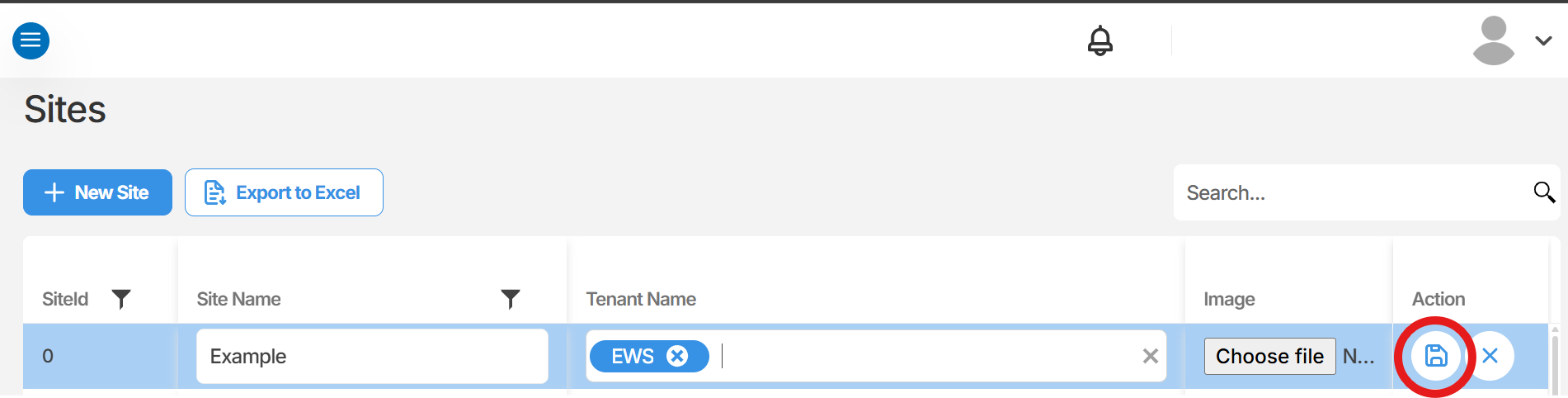
- A new row will appear at the top of the sites list. Enter a name in the Site Name field.
- Use the Tenant Name drop-down to select the appropriate tenant for this site.
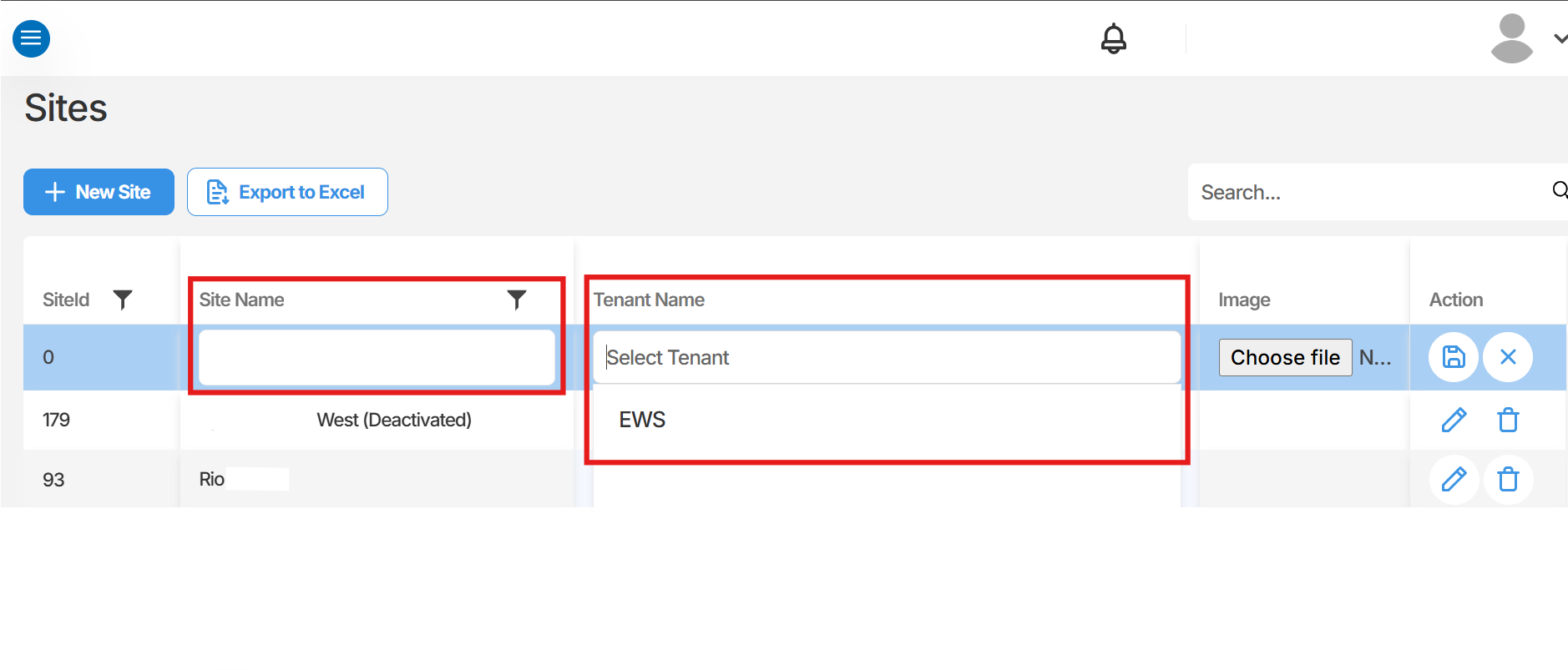
- Select the Save icon to save the new site.
Summary
Section titled “Summary”This article covered how to create a new site in Orion Data using the User Management section. Sites are created by navigating to User Management > Sites, selecting + New Site, completing the required fields, and saving.
Next Steps
Section titled “Next Steps”- Review existing sites and assign devices or users as needed
- Configure user roles and permissions for the new site
- Explore other User Management options such as managing users and groups
Related articles
Section titled “Related articles”- Understanding user roles and permissions in Orion Data
- Managing users in Orion Data
- An overview of User Management in Orion Data