

Transform sensor data
Recalculate historical sensor data
Start recalculation after changing a calibration so it can be applied to historical readings.
To apply the updated calibration to existing historical data on the device, you must trigger a Force-recalculation. This article explains when to use Force-recalculation and how to run it.
When to use Force-recalculation
Section titled “When to use Force-recalculation”Use Force-recalculation after you have made any of the following changes to a calibration:
- Added a new calibration to a sensor
- Removed an existing calibration from a sensor
- Modified the settings of an existing calibration
Force-recalculation processes all historical data on the device through the updated calibration. This ensures that charts, dashboards, and exports reflect the corrected values across the full data history, not just from the time of the change.
Running a Force-recalculation
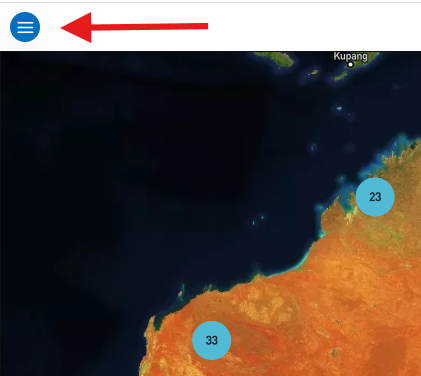
Section titled “Running a Force-recalculation”- Select the menu icon (three horizontal lines) in the top left-hand corner of the screen.
- Select Devices from the menu. The Devices page will open.
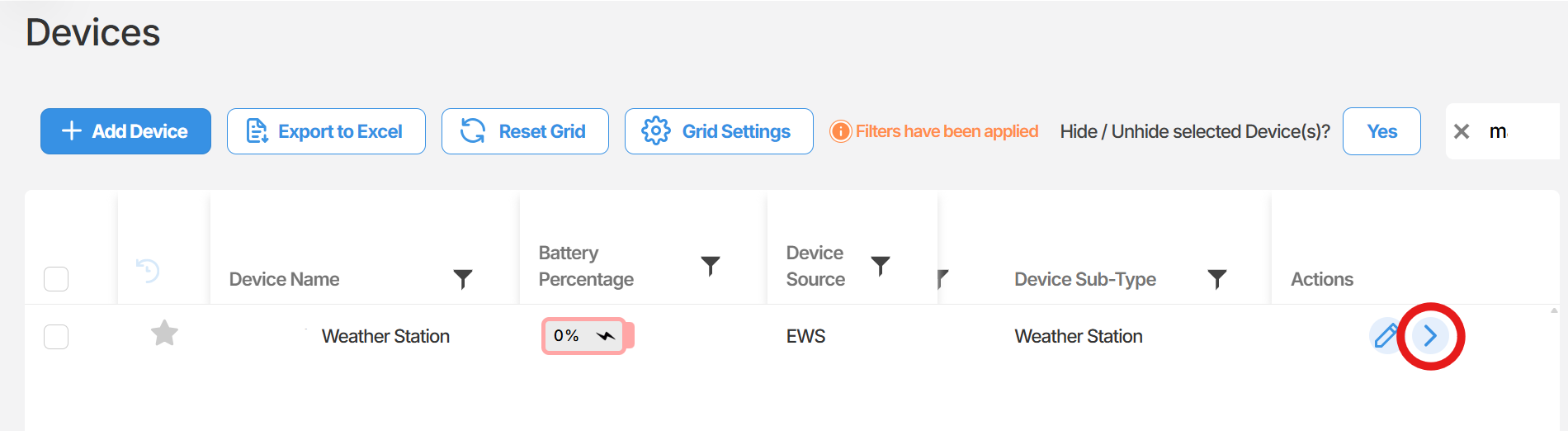
- Locate the device you wish to update. Select the arrow icon on the far right of that device row to open the device.
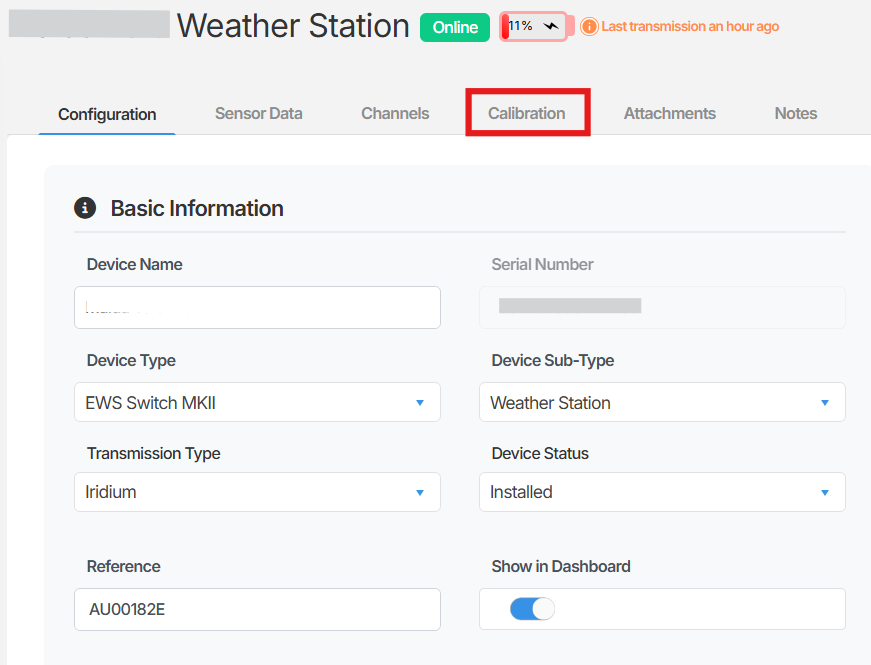
- Within the device, select the Calibrations tab.
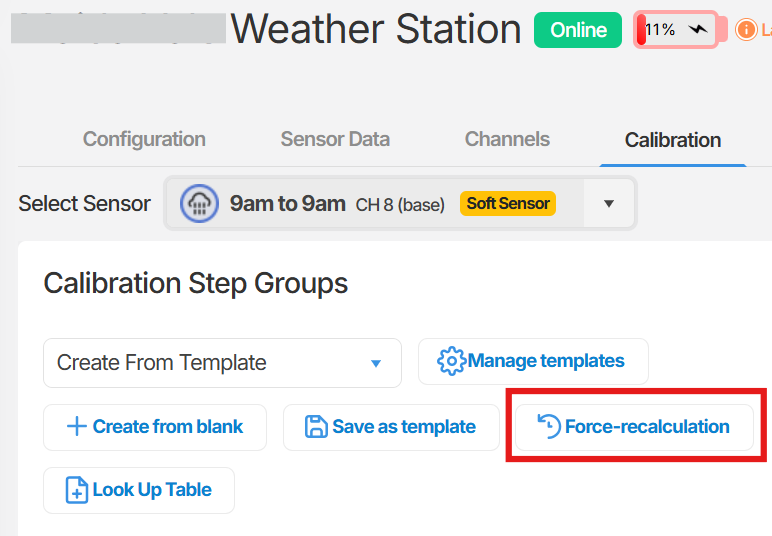
- Select the Soft Sensor you need to apply the recalculation to.
- Make your calibration changes if you have not already done so, then select Save. You will be returned to the Calibrations page.
- On the Calibrations page, locate and select Force-recalculation.
A green confirmation banner will appear in the top right corner of the screen with the message: “Data recalculation has started. Process will take a few minutes to complete.”

Summary
Section titled “Summary”Force-recalculation allows you to apply calibration changes retrospectively to all historical data on a device in Orion Data. After saving a calibration update, select Force-recalculation to start the process. A confirmation banner will appear once the recalculation has been initiated.
Next Steps
Section titled “Next Steps”- Review your sensor data on the relevant dashboard or chart to confirm the recalculated values appear as expected.
- If the recalculation does not complete or the data does not update, contact your system administrator or EWS Monitoring support.
- Explore calibration templates to apply consistent calibration settings across multiple devices.
Related articles
Section titled “Related articles”- Calibrations and sensor values
- Setting up a calibration on a sensor
- Working with soft sensors
- Viewing and editing sensor data in the Data Editor