

Transform sensor data
Apply a daily accumulation template
Apply an existing accumulation-and-reset template and configure its sensor and reset window.
This is commonly used for measurements such as daily rainfall or flow totals. Before following the steps below, you must have already created the accumulation and reset calibration template in Orion Data. If you have not done this yet, refer to the related article on Saving a calibration as a template in Orion Data.
Before you begin
Section titled “Before you begin”Confirm that the following are in place before proceeding:
- The target device is accessible in Orion Data.
- The soft sensor you intend to use as the input for the accumulation has been configured on the device.
- The calibration template containing the Accumulation and Reset groups has been created and saved.
Applying the template to a device
Section titled “Applying the template to a device”Step 1: Open the device calibrations
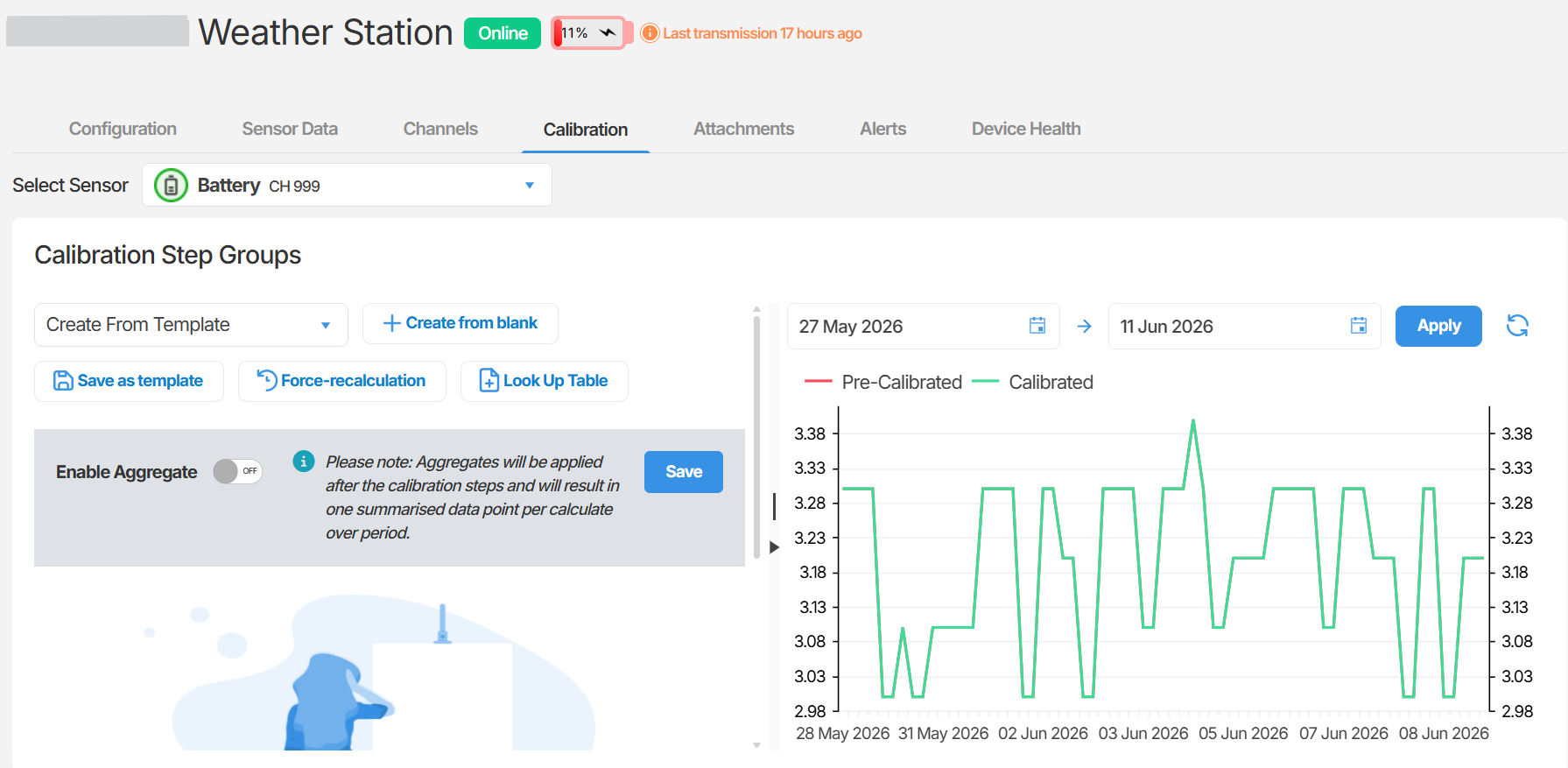
Section titled “Step 1: Open the device calibrations”- Navigate to the target device in Orion Data.
- Open the Calibrations tab for that device.
Step 2: Create from template
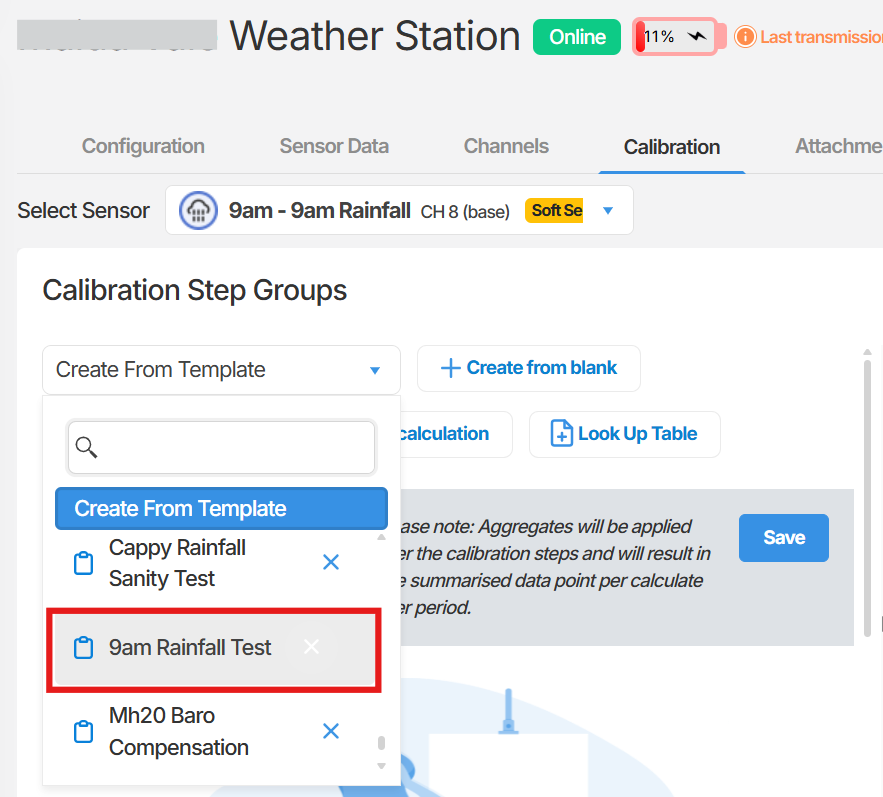
Section titled “Step 2: Create from template”- Click Create From Template.
- In the drop-down, search for and select the accumulation and reset template you created.
Step 3: Configure the Accumulation group
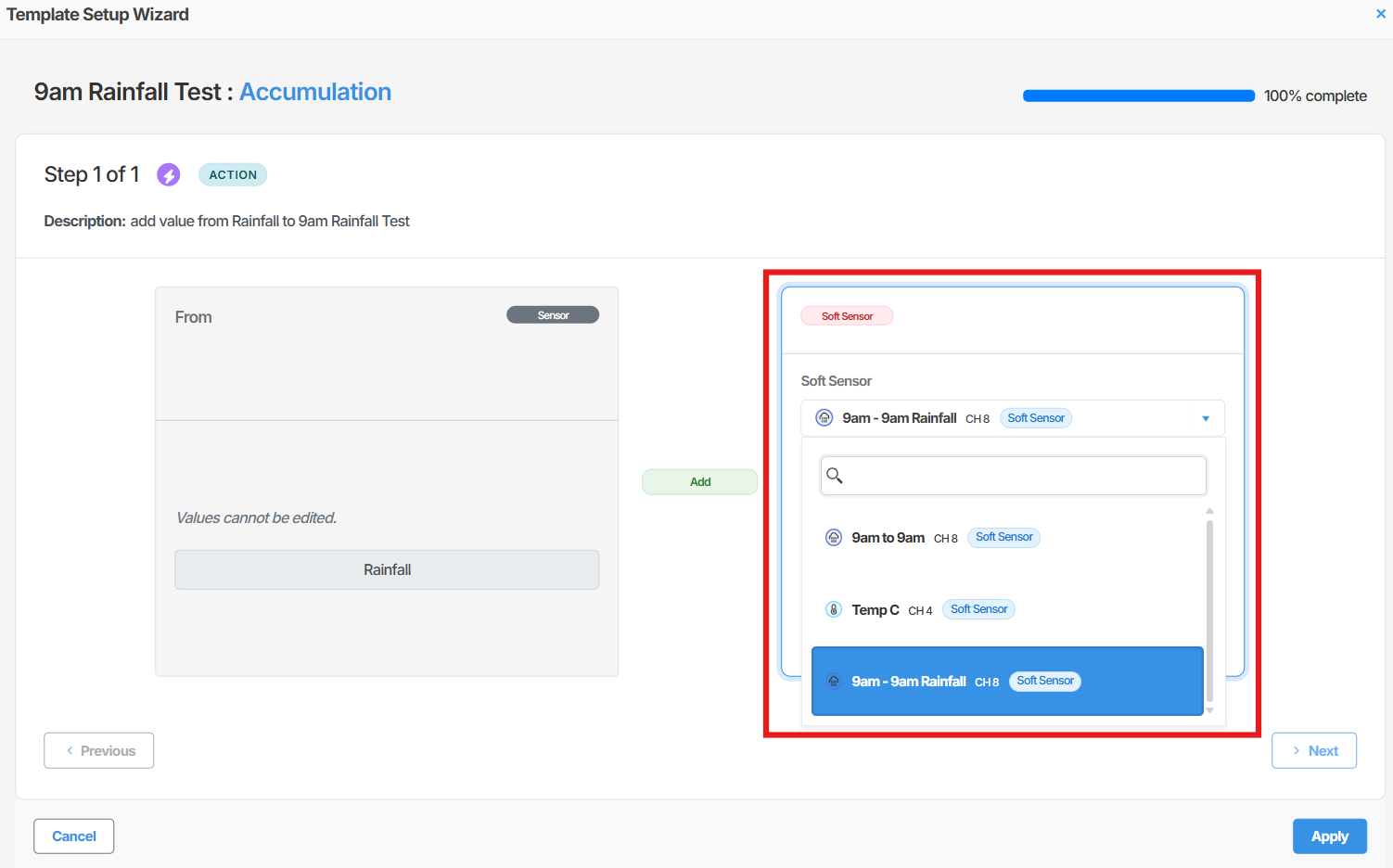
Section titled “Step 3: Configure the Accumulation group”Once the template loads, you will see two configuration groups. The first is labelled Accumulation (Group 1) and displays NEEDS CONFIGURATION in the status indicator.
- Click Configure on the Accumulation group.
- In the configuration pop-up, use the drop-down to select the soft sensor that will be used as the input for the accumulation calculation.
- Click Apply.
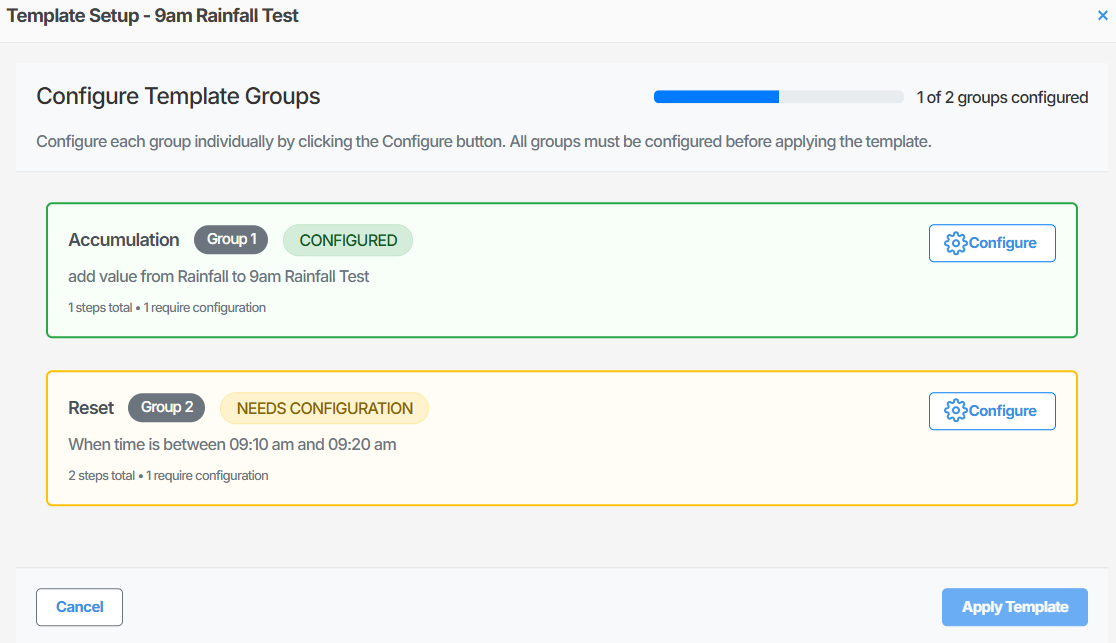
After clicking Apply, you will be returned to the template view. The Accumulation group status indicator will turn green, confirming the configuration is complete.
Step 4: Configure the Reset group
Section titled “Step 4: Configure the Reset group”The second group is labelled Reset (Group 2) and displays NEEDS CONFIGURATION.
- Click Configure on the Reset group.
- Enter the start time and end time for the reset window in the fields provided.
- Click Next.
- On the following screen, no additional fields require input. Click Apply.
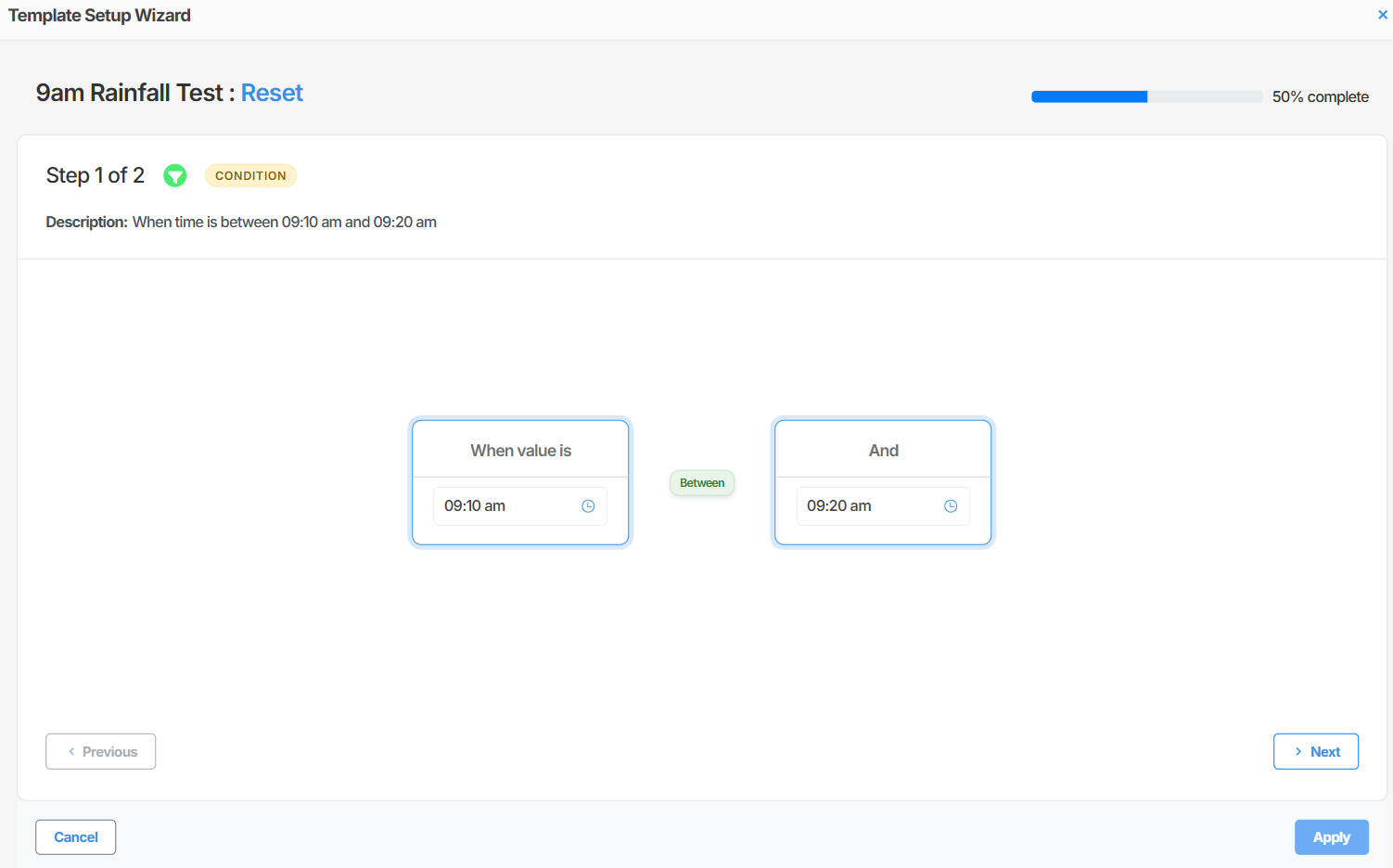
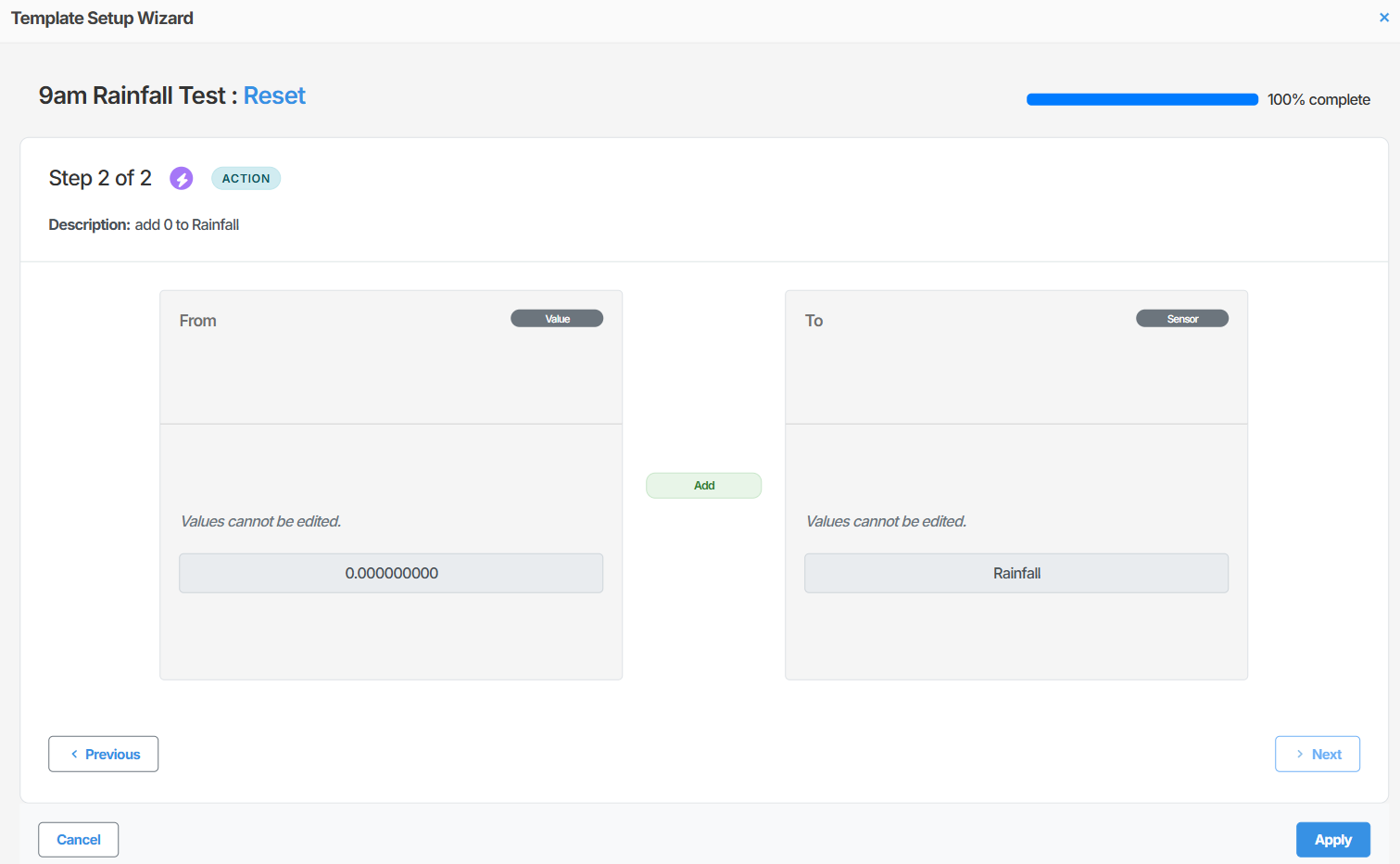
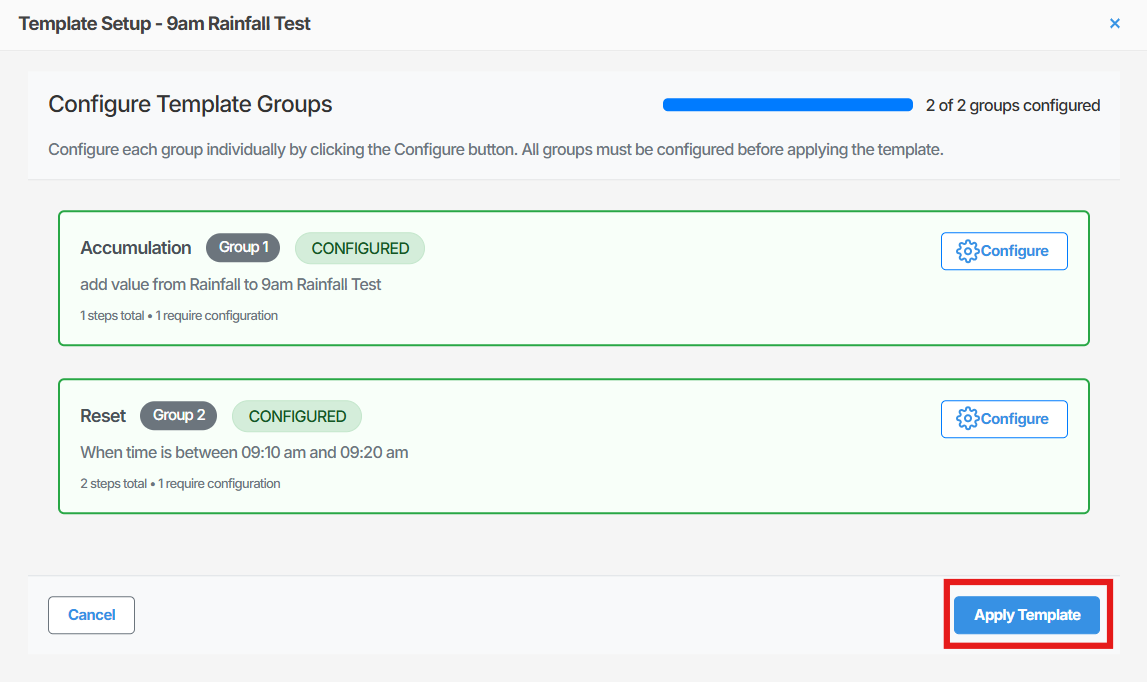
After clicking Apply, the Reset group status indicator will turn green.
Step 5: Apply the template
Section titled “Step 5: Apply the template”With both groups configured and showing green status indicators, click Apply Template.
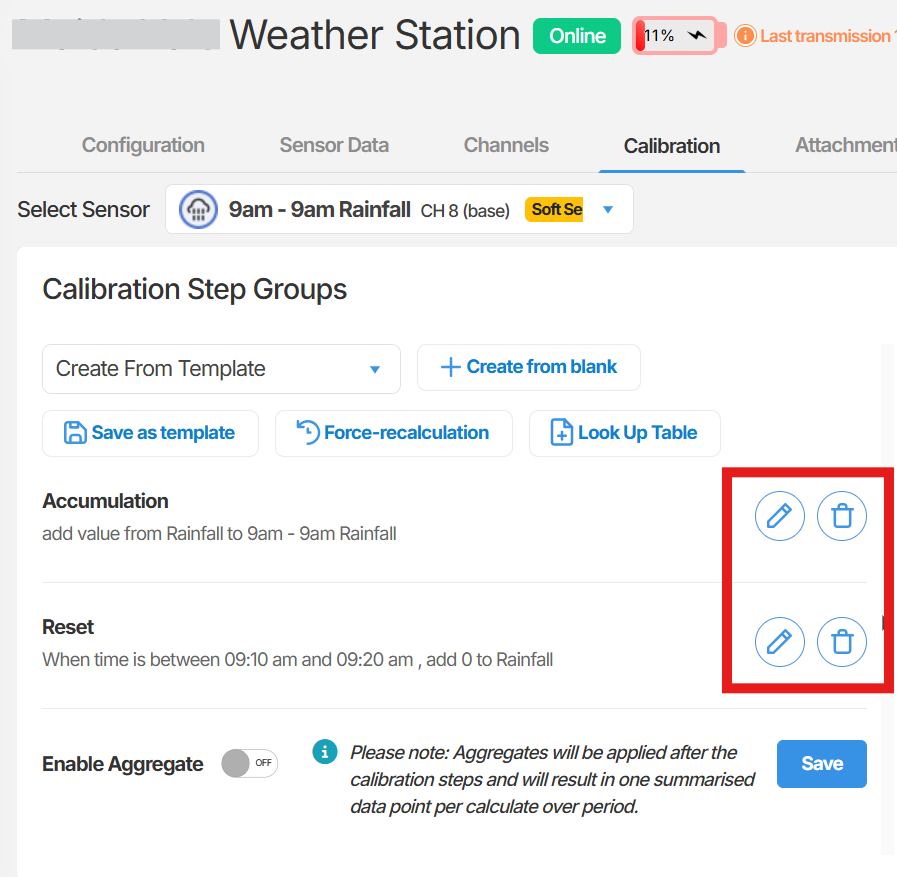
Orion Data will process the template and return you to the device calibrations screen. The new accumulation calibration will appear in the list with Edit and Delete options available.
Summary
Section titled “Summary”This article walked through the process of applying a daily accumulation and periodic reset calibration template to a device in Orion Data. You configured the Accumulation group by selecting the target soft sensor, and the Reset group by defining the daily reset time window. Once both groups were configured, the template was applied to the device.
Next Steps
Section titled “Next Steps”- Verify the calibration is producing expected accumulation values by reviewing the sensor data in the Data Editor.
- Set up an alarm on the accumulation sensor if you need to be notified when a daily threshold is reached.
- Review the calibration template if adjustments to the reset window or input sensor are required.
Related articles
Section titled “Related articles”- Creating a calibration template in Orion Data
- Understanding calibration groups and actions
- Setting up sensor alarms in Orion Data
- Using the Data Editor to verify sensor readings