

Set up devices
Deactivate a device
Record a device deactivation, save its status and date, and notify the EWS team.
Deactivating a device updates its status and records the deactivation date, ensuring your device list accurately reflects which units are no longer in active use.
Steps to deactivate a device
Section titled “Steps to deactivate a device”-
Select the menu icon (three horizontal lines) in the top left-hand corner of the screen.
-
Select Devices from the menu. The Devices page will open.
-
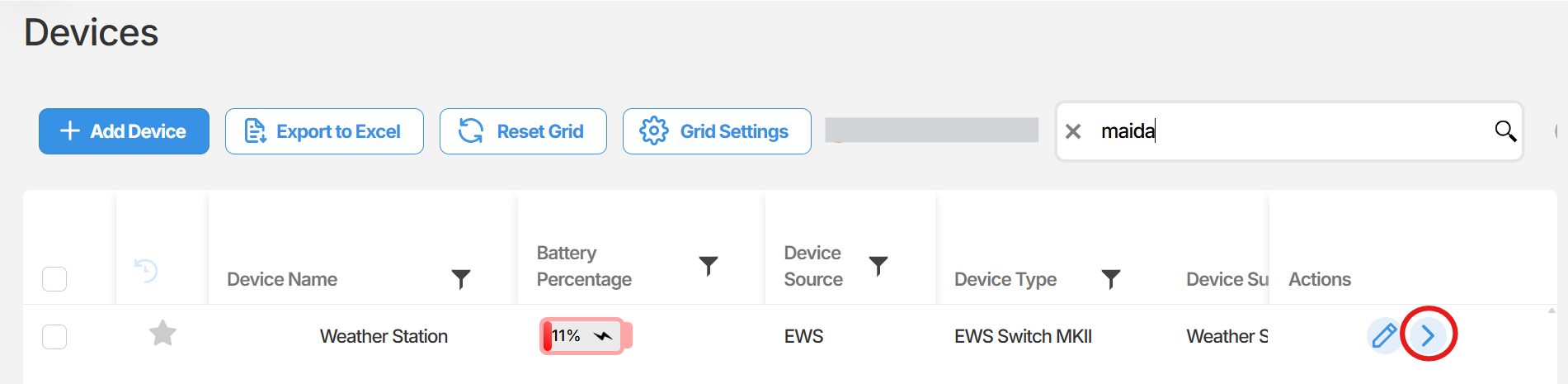
Locate the device you wish to deactivate, then select the arrow icon on the far right of that device row to open the device.
-
Within the device, you will be in the configuration window by default. In the Device Name field, append (Deactivated) to the existing device name.
-
In the same section, locate the Device Status field and update it to Deactivated.
-
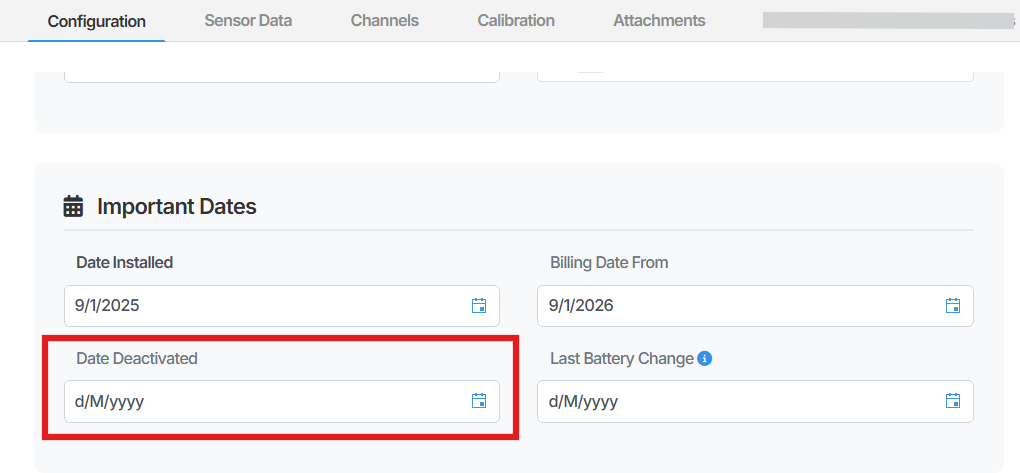
Scroll down to the Important Dates section and enter the relevant date in the Date Deactivated field.
-
Select Update Device in the bottom right-hand corner. A green confirmation message reading “Device Updated Successfully” will appear once the change has been saved.
Summary
Section titled “Summary”Deactivating a device in Orion Data involves updating the device name, setting the Device Status to Deactivated, and recording the Date Deactivated in the Important Dates section. Once saved, the EWS team must be notified of the change. This process ensures your device records remain accurate and up to date.
Next Steps
Section titled “Next Steps”- Notify the EWS team that the device has been deactivated
- Review your Devices list to confirm the device status is displaying correctly
- If the device is being replaced, refer to the article on adding a new device in Orion Data
Related articles
Section titled “Related articles”- Setting up a new device in Orion Data
- Editing device configuration in Orion Data
- Understanding device status in Orion Data